

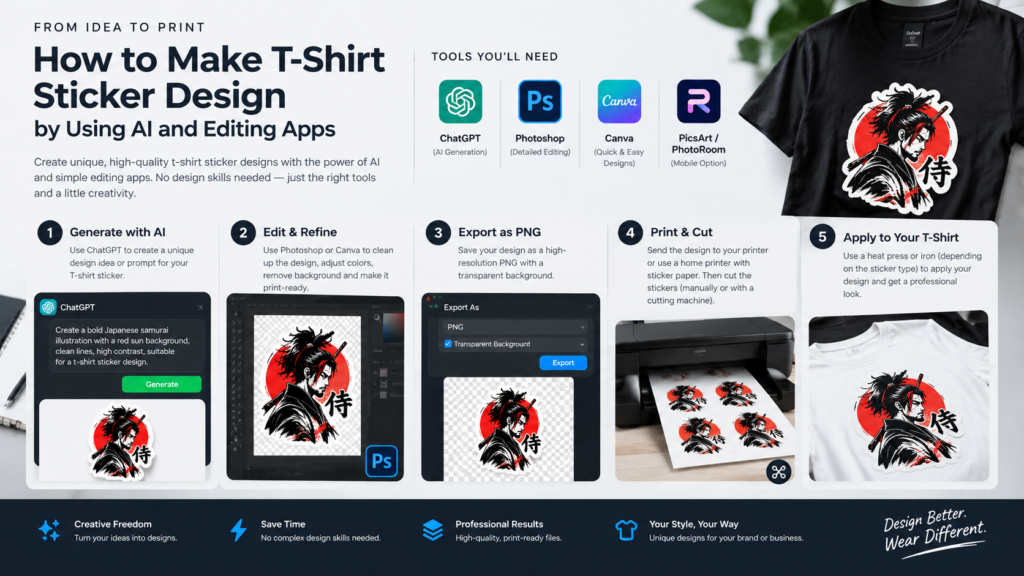
How to Make T-Shirt Sticker Design by Using AI and Editing Apps
Designing custom clothing, streetwear apparel, and printable stickers has undergone a complete revolution in recent years. What once required years of formal graphic design training or hiring expensive freelance illustrators can now be initiated in seconds using artificial intelligence. However, relying purely on raw AI image generators often leaves creators with flawed details, distorted lines, unwanted background artifacts, and low-resolution files completely unsuited for physical fabric printing.
To create retail-ready apparel graphics, the most effective workflow combines creative direction, generative AI tools, and post-processing editing apps like Adobe Photoshop. Whether you are launching an e-commerce clothing brand, creating custom merchandise, or producing transfer stickers for local distribution, this step-by-step guide walks you through transforming a rough visual concept into a clean, high-resolution, transparent PNG file ready for professional printing.
Step 1: Conceptualization & Finding Visual Inspiration on Pinterest
Before opening an AI platform or photo editing software, you need a crystal-clear vision for your graphic or sticker design. Great custom apparel graphics start with structured research, concept development, and composition planning.
Defining Your Design Direction
Start by narrowing down the aesthetic identity of your graphic. Ask yourself key creative questions before generating any artwork:
- Graphic Style: Are you aiming for 90s vintage bootleg rap tees, Y2K chrome typography, Japanese anime streetwear, minimalist line art, gothic cyberpunk, or bold vector mascot art?
- Subject Matter & Composition: Will the design rely on a central character, a complex illustrative scene, abstract geometric arrangements, or heavy display typography?
- Color Palette Strategy: What shirt colors will this design be printed on? A design intended for a black hoodie requires completely different edge contrast and color choices than artwork meant for a pastel or white T-shirt.
Workflow Summary
| Stage | Step Name | Key Objectives & Actions | Primary Tools |
|---|---|---|---|
| 01 | Research & Concept | Define aesthetic style (Streetwear, Vintage, Cyberpunk, Line Art) and build a Pinterest Mood Board. | |
| 02 | Generative AI Creation | Prompt ChatGPT / Gemini with detailed parameters; request isolated subjects on flat/solid backgrounds. | ChatGPT / Gemini |
| 03 | Post-Processing | Import AI variants into Adobe Photoshop; isolate main graphic using masking tools; clean flaws and composite elements. | Adobe Photoshop |
| 04 | Print Preparation | Upscale canvas resolution to 300 DPI at 1:1 scale; refine edge contrast; export as transparent PNG-24. | Adobe Photoshop |
| 05 | Garment Production | Print using Direct-to-Film (DTF) or Direct-to-Garment (DTG) on premium blank apparel. | DTF / DTG Printer |
Building a Pinterest Mood Board
Pinterest is one of the most effective platforms for visual mood-boarding. It allows you to analyze visual patterns and collect reference imagery before writing prompts for AI generators:
- Search Targeted Keywords: Enter specific search phrases like “vintage bootleg rap tee graphic,” “gothic vector sticker design,” “streetwear back print,” or “minimalist line art graphic.”
- Analyze Key Visual Attributes: Pin 10 to 20 images to a dedicated board. Look closely at how professional designers manage line weights, shading techniques, background isolation, and balance between text and imagery.
- Download Anchor References: Select 2 or 3 images that best represent the linework, composition, and color contrast you want to achieve. You will use these as visual anchors when drafting prompts for AI tools.
Step 2: Generating Base Artwork Using AI (ChatGPT & Gemini)
With reference imagery gathered, you can leverage AI platforms like Google Gemini or OpenAI ChatGPT to convert your conceptual ideas into initial image variations.
Writing High-Yield Prompts for T-Shirt Graphics
When prompting AI image models for print assets, generic prompts like “draw a cool skull T-shirt graphic” yield unpredictable, overly busy, or low-quality results. Your prompt must include explicit instructions regarding style, medium, composition, lighting, and background isolation.High-Converting Prompt Template:
“Create a central vector sticker graphic of a retro-futuristic cyberpunk skull wearing glowing neon goggles, detailed linework, vibrant electric blue and magenta accent colors, bold outer contours, isolated completely on a solid flat white background, flat 2D graphic design style, vector illustration suitable for T-shirt sticker printing, no gradients in background, no drop shadows.”
Three Golden Rules for AI Print Generation
- Enforce Solid Background Isolation: Always instruct the AI to place the graphic on a solid white or solid black background. Avoid prompts that generate complex scenery, cityscape backdrops, or subtle drop shadows behind the subject, as these create extreme friction during background removal.
- Avoid AI Text Rendering: AI tools often produce garbled, misspelled, or inconsistent letterforms. Prompt the AI to focus strictly on the visual illustration or mascot, leaving text elements to be added later in your editing app using dedicated typography tools.
- Iterate Methodically: Rather than starting from scratch when a generation is slightly off, use follow-up prompts to tweak specific parameters (e.g., “Keep the exact same character, but make the linework thicker and change the neon yellow highlights to crimson red”).
Step 3: Why Transparent PNG Files Are Essential for Printing
For any T-shirt graphic, sticker, or apparel decal to look professional on fabric, it must be prepared and exported as a high-resolution transparent PNG.
The Problem with JPEG and Non-Transparent Exports
If you send a standard JPEG file to an apparel printer or print-on-demand service, the design carries its background along with it—usually a solid white or black square canvas. Printing this file onto a colored garment results in a large, stiff white box around your artwork rather than a clean, seamless graphic floating on the fabric.
The Limits of Auto-Removal Tools
While many online background removers and AI platforms claim to generate instant transparent PNGs, they frequently cut corners:
- Fuzzy Edges: Automated edge-detection algorithms often blur fine linework, leaving jagged or soft edges.
- Color Bleed / Halos: White or dark background pixels frequently stick to the border of your graphic, causing an unsightly white “halo” effect when printed onto dark-colored T-shirts.
- Loss of Internal Details: Automated tools often mistakenly delete white highlights, eyes, or internal graphic elements inside the main design, mistaking them for part of the background.
To guarantee professional print quality, manual inspection and refining inside a photo editing app is necessary.
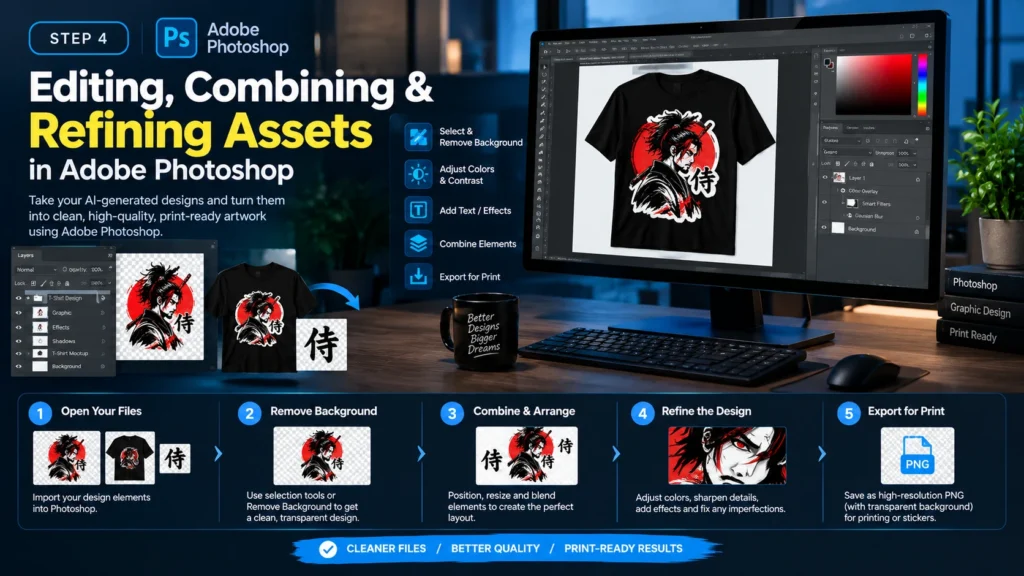
Step 4: Editing, Combining & Refining Assets in Adobe Photoshop
Artificial intelligence acts as your digital assistant, but photo editing apps like Adobe Photoshop serve as your primary workshop. Photoshop gives you pixel-level control to fix AI mistakes, clean borders, combine multiple elements, and add custom typography.
1. Setting Up the Workspace for Physical Print
Begin by setting up a canvas sized for physical printing:
- Open Adobe Photoshop and select Create New.
- Set physical dimensions to the actual desired print scale (e.g., 12 inches wide by 16 inches tall for standard front/back prints, or 4 inches by 4 inches for small chest pocket prints or stickers).
- Set the resolution to 300 Pixels Per Inch (DPI). Working at 72 DPI (web resolution) results in pixelated, blurry physical prints.
2. Isolating the Subject & Removing Extra Artifacts
Import your AI-generated image variants as individual layers on your canvas:
- Select your target layer and open the Properties panel.
- Click Select Subject (or use the Quick Selection Tool [W]). Photoshop will detect the primary figure and create an active selection outline.
- Click the Add Layer Mask icon at the bottom of the Layers panel. This hides the background non-destructively without permanently deleting pixels.
- Zoom in to inspect the edges. Select a hard round brush set to Black (#000000) and paint directly over the Layer Mask to remove stray AI artifacts, distorted extra limbs, unwanted floating pixels, or messy background remnants.
3. Compositing the Best Elements
AI generation rarely produces a flawless single image. One generation might yield the perfect mascot face, while another generation features superior border accents or weapons:
- Layer both images on top of one another in your editing workspace.
- Use Layer Masks on each layer to isolate the best parts from both generations.
- Align and scale the elements together, blending them seamlessly into a single cohesive illustration.
4. Color Correction & Edge Refinement
- Eliminate Color Halos: Double-click your Layer Mask to enter the Select and Mask workspace. Adjust the Shift Edge slider slightly to the left (-10% to -20%) to contract the selection inward, clipping away lingering background color halos.
- Enhance Contrast: Add a Curves or Levels Adjustment Layer clipped to your artwork. Boost contrast slightly to make blacks deeper and colors more vivid so they translate clearly onto fabric.
Step 5: Final File Export Specifications for Print Readiness
Before sending your artwork to a screen printer, Direct-to-Film (DTF) printer, or apparel manufacturing facility, ensure your technical file settings meet professional industry standards.
| Technical Specification | Required Parameter | Purpose / Benefit |
|---|---|---|
| File Format | PNG-24 (Transparent) | Preserves clear background without compression box |
| Resolution | 300 DPI / PPI | Guarantees crisp line edges and clear print detail |
| Color Space | CMYK or RGB (check printer specs) | Ensures accurate color reproduction from screen to print |
| Canvas Scale | 1:1 Scale of Physical Print (e.g., 12″ x 16″) | Prevents low-resolution upscaling at the print shop |
| Transparency Check | Verified on dark & light test layers | Catches stray background pixels before printing |
How to Export Clean PNG Files in Photoshop
- Turn off or delete all solid background preview layers so the gray-and-white checkerboard transparency grid is visible behind your design.
- Go to File > Export > Export As…
- Select PNG from the Format dropdown menu and verify the Transparency box is checked.
- Export the final file and open it against both a solid black background and a solid white background in your editing app to perform a final inspection for stray pixels or raw edges.
Garment Selection & Custom Apparel Manufacturing
Creating a clean, high-resolution graphic file is only half of the apparel production equation. The fabric composition, garment weight, and blank silhouette play a critical role in how the final printed sticker or graphic sits on the shirt.
Heavyweight cotton fabrics (such as 220+ GSM combed cotton) provide a smooth, flat surface ideal for Direct-to-Film (DTF) transfer stickers and high-density screen printing.
By combining AI image generation for rapid ideation with the precision editing power of Adobe Photoshop, you can consistently transform raw creative concepts into professional, print-ready custom T-shirt designs. find more imformative articals on zestwear.pk