

Discover the best free AI presentation tools in 2026. Compare features, free plans, export options, and tools for students and professionals.
Best Free AI Tools to Create Presentations in 2026
Creating a professional presentation can take hours when you have to research a topic, organize information, write slide content, and choose a design. Fortunately, AI presentation tools can help you complete these tasks faster.
The best free AI tools to create presentations can turn a simple text prompt, an outline, or existing content into a structured slide deck. Some focus on attractive designs, while others work inside presentation software you may already use.
However, not every tool offers the same free features. Some limit the number of AI generations, while others restrict exports or add their own branding.
In this guide, we compare seven AI presentation tools, explain what each one does best, and help you choose an option for school projects, business meetings, and everyday presentations.
Quick Answer: What Are the Best Free AI Presentation Tools?
Here is a quick overview of the tools covered in this guide.
| AI tool | Best for | Free-plan consideration |
|---|---|---|
| Canva | Flexible visual design | AI usage and some features are limited |
| Gamma | Generating complete presentations from prompts | Starter credits and slide limits |
| SlidesAI | Turning text into slides | Annual presentation and character limits |
| Prezi | Dynamic, visual presentations | Check sharing and privacy options |
| Presentations.AI | Drafting business presentations | Check credit and export restrictions |
| Google Slides | Editing and collaborating on slides | AI generation depends on available features |
| Microsoft PowerPoint for the web | Familiar slide editing | Advanced AI features may require a subscription |
Important: A free account does not always mean unlimited AI generations or free access to every export format. Check the current plan before creating a presentation for an important assignment or meeting.
1. Canva: Best for Customizable Presentation Designs
Canva is a popular online design platform for presentations, posters, social media graphics, and other visual content. Its presentation editor combines templates, images, layouts, and AI-assisted features.
Canva is useful when you want to create a presentation that looks polished but still needs personal customization.
Key features
- Ready-made presentation templates.
- Drag-and-drop design editor.
- Images, graphics, charts, and other visual elements.
- AI-assisted writing and design features, subject to usage limits.
- Presentation exports in supported formats.
How to create a presentation with Canva
- Open Canva.
- Sign in and select a presentation design.
- Choose a template or an available AI-assisted creation option.
- Enter your topic and organize the main points.
- Edit the slide text, visuals, and layout.
- Preview the presentation and export it using an available format.
Pros and cons
Pros
- Flexible designs for school, business, and personal projects.
- Easy to customize individual slides.
- Useful for people without graphic design experience.
Cons
- Some templates, assets, and features require payment.
- AI usage is limited on the free plan.
- Automatically generated content may need substantial editing.
Best for: Students, teachers, content creators, and small businesses that want control over the final design.
2. Gamma: Best for Creating Slides from a Text Prompt
Gamma is an AI-powered content creation platform that can generate presentations from a topic or prompt. Instead of designing every slide from scratch, you can begin with an idea and refine the generated result.
It is especially useful when you need a first draft quickly.
Key features
- AI-generated presentation outlines and content.
- Presentation creation from prompts.
- Editing and rearranging generated content.
- Import options for existing PDF and PowerPoint files.
- Export options that include PDF and PowerPoint, subject to current plan features.
Gamma’s published free plan includes 400 starter credits and allows up to 10 slides per prompt. The credits are a starting allowance rather than an unlimited monthly supply.
How to create a presentation with Gamma
- Visit Gamma.
- Create an account.
- Choose the presentation creation workflow.
- Enter a specific prompt describing the topic and audience.
- Review the outline and generate the slides.
- Correct mistakes, adjust the design, and check the available export options.
Example prompt:
“Create a 10-slide presentation explaining cybersecurity basics to college students. Include common online threats, practical protection tips, simple examples, and a final summary. Use clear language and avoid unsupported statistics.”
Pros and cons
Pros
- Helps generate a structured first draft quickly.
- Useful for turning an outline into a visual presentation.
- Supports several import and export formats on its free plan.
Cons
- Starter credits are limited.
- Free presentations may include Gamma branding.
- Exported slides may need formatting adjustments.
Best for: People who want AI to create the initial presentation structure instead of manually building every slide.
3. SlidesAI: Best for Turning Text into Slides
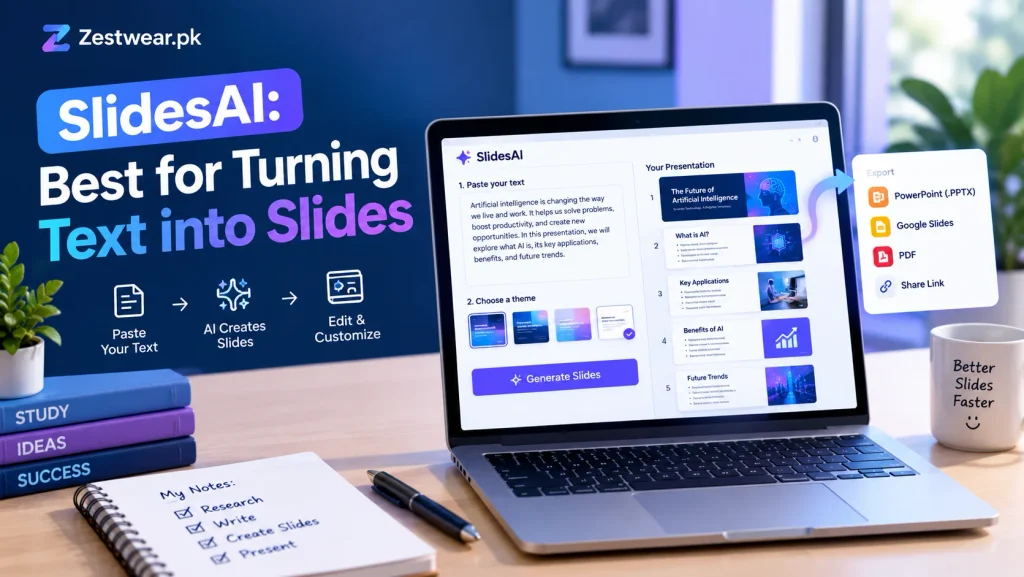
SlidesAI helps convert written material into presentation slides. It can be useful if you already have notes, an essay, or an outline and want to transform that information into a more visual format.
Its workflow is designed to reduce the time spent manually dividing text into individual slides.
Key features
- Converts supplied text into slide content.
- Helps organize material into presentation sections.
- Works with Google Slides through its supported integration.
- Offers different plans with different generation limits.
SlidesAI’s published Basic plan is free and lists 12 presentations per year, a 1,000-character input limit per presentation, and 120 AI credits per year. Check the current terms before relying on those limits.
How to use SlidesAI
- Visit SlidesAI.
- Create an account and follow its Google Slides setup instructions.
- Start a presentation using the supported workflow.
- Enter your topic or paste your existing text.
- Generate the slides.
- Review the content and correct any errors before sharing.
Pros and cons
Pros
- Useful for people who already have written content.
- Reduces the work of dividing text into slides.
- Fits into a Google Slides-based workflow.
Cons
- Free presentations and input length are limited.
- Generated layouts may require editing.
- Long source documents may need to be shortened first.
Best for: Students and professionals who want to convert existing notes or written material into slides.
4. Prezi: Best for Dynamic, Visual Presentations
Prezi is known for a presentation style that emphasizes visual movement, relationships between ideas, and zooming between different parts of a presentation. Its AI-assisted features can help users develop presentation content and structure.
It can be a good alternative to conventional slides when the topic benefits from showing how ideas connect.
Key features
- Visually dynamic presentation layouts.
- AI-assisted presentation creation features.
- Tools for organizing connected ideas.
- Options for sharing presentations online.
How to use Prezi
- Open Prezi.
- Sign up and check which AI features are available to your account.
- Select a presentation workflow or template.
- Enter your topic and organize the main ideas.
- Customize the visual structure and presentation flow.
- Review the sharing, privacy, and export options available on your plan.
Pros and cons
Pros
- Distinctive visual presentation style.
- Useful for explaining relationships between concepts.
- Offers an alternative to traditional slide layouts.
Cons
- Its presentation style may not suit every audience.
- Free-plan sharing and privacy conditions should be checked.
- You may need time to learn the editing workflow.
Best for: Educators, presenters, and professionals who want to explain connected ideas visually.
5. Presentations.AI: Best for Business Presentation Drafts
Presentations.AI is designed to help users create presentations from a topic or prompt. It can be useful for early drafts of business proposals, project updates, pitches, and reports.
As with any AI presentation maker, the output should be treated as a draft rather than a finished business document.
Key features
- AI-assisted slide generation.
- Presentation structures for professional topics.
- Design and layout assistance.
- Options that vary by subscription plan.
How to use Presentations.AI
- Visit Presentations.AI.
- Create an account and review the available plan.
- Enter your presentation topic and intended audience.
- Generate a draft.
- Check the facts, rewrite generic content, and adjust the slides.
- Confirm whether the free plan supports the export format you need.
Pros and cons
Pros
- Useful for getting started with business presentations.
- Can help structure an idea into slides.
- Reduces some manual formatting work.
Cons
- Credits and export features may be restricted.
- Free-plan branding or other limitations may apply.
- Financial, market, and business claims require independent verification.
Best for: Entrepreneurs, business students, and professionals preparing an initial presentation draft.
6. Google Slides: Best for Collaboration and Free Editing
Google Slides is a web-based presentation editor that allows users to create, edit, and collaborate on presentations. It is particularly useful when several people need to work on the same deck.
Google Slides is not the same as a dedicated AI presentation generator. AI-assisted creation depends on the features available to your account and plan.
Key features
- Browser-based slide editing.
- Real-time collaboration.
- Comments and sharing controls.
- Presentation templates and formatting tools.
- Import and export options.
How to use Google Slides
- Open Google Slides.
- Create a blank presentation or select a template.
- Add your outline, headings, text, images, and charts.
- Share the file with collaborators if needed.
- Review the presentation and download it in a supported format.
You can draft an outline with an AI assistant and then build the slides in Google Slides if you do not have access to AI presentation generation.
Pros and cons
Pros
- Useful for group projects and collaboration.
- Familiar editing interface.
- Good for maintaining control over slide content.
Cons
- The standard free experience does not necessarily generate a complete deck from a prompt.
- Designing slides manually can take time.
- Some advanced AI features require an eligible plan.
Best for: Students, teams, and users who value editing and collaboration more than automatic slide generation.
7. Microsoft PowerPoint for the Web: Best for Familiar Slide Editing
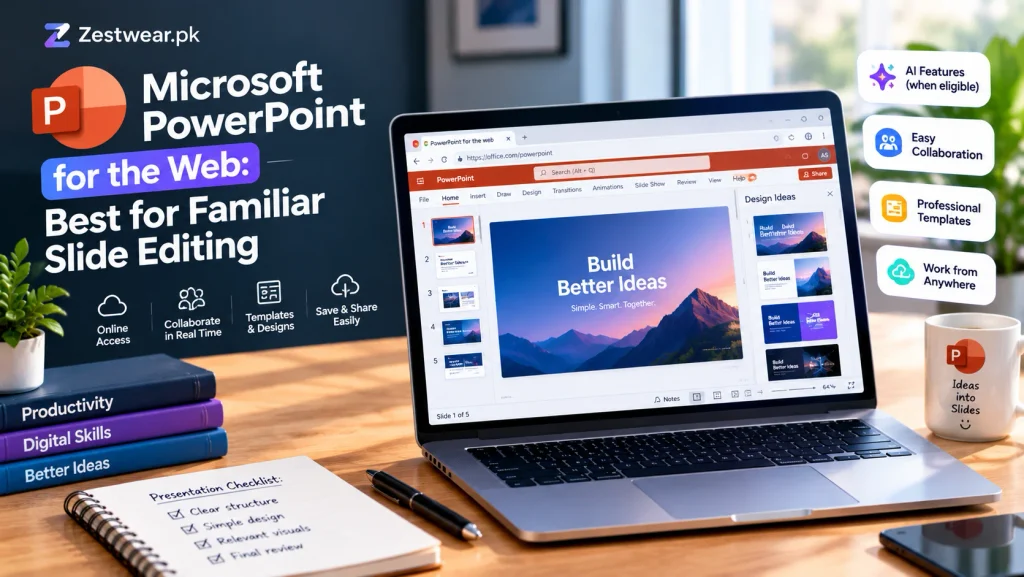
PowerPoint for the web is an online version of Microsoft’s presentation software. It is useful for editing presentations in a familiar environment and working with PowerPoint files.
However, access to PowerPoint’s advanced AI presentation features, including Copilot, depends on account eligibility and subscription requirements.
Key features
- Online presentation editing.
- Familiar slide layouts and formatting controls.
- Collaboration and sharing features.
- Compatibility with PowerPoint files.
How to use PowerPoint for the web
- Visit PowerPoint.
- Sign in with an eligible Microsoft account.
- Create a presentation or open an existing file.
- Add and edit your slide content.
- Use any AI features available to your account, if eligible.
- Save or download the presentation using the available options.
Pros and cons
Pros
- Familiar interface for existing PowerPoint users.
- Useful for editing and sharing slide decks.
- Suitable for professional and academic presentations.
Cons
- Advanced AI features may require a paid subscription.
- AI presentation generation is not guaranteed to be available on every free account.
- Manual editing may still be necessary.
Best for: People who already use PowerPoint and want to edit or present slides online.
How to Choose the Best Free AI Presentation Tool
The right tool depends on what you need to create and how you plan to use the final presentation.
| Your requirement | Tool to try first |
|---|---|
| Customizable visual designs | Canva |
| A complete first draft from a prompt | Gamma |
| Turning existing notes into slides | SlidesAI |
| Dynamic visual storytelling | Prezi |
| Business presentation drafts | Presentations.AI |
| Team collaboration and manual editing | Google Slides |
| Editing PowerPoint files | PowerPoint for the web |
These are suggested starting points, not a guarantee that one tool will produce the best result for every project.
What to check before choosing a tool
1. AI generation limits: Find out how many presentations or AI generations are included in the free plan.
2. Export formats: Confirm whether you can download the finished presentation as PPTX or PDF without upgrading.
3. Watermarks and branding: Some free plans may add platform branding to shared presentations or exports.
4. Editing flexibility: Check whether you can edit individual slide elements after the presentation is generated.
5. Privacy: Avoid uploading confidential business information, private student records, or sensitive documents without checking the service’s privacy terms.
6. Content accuracy: Verify statistics, citations, names, dates, and factual claims before presenting the slides to an audience.
How to Create a Better AI Presentation
Choosing a tool is only part of the process. The quality of the instructions you provide also matters.
Step 1: Define your audience
Decide whether the presentation is for students, customers, colleagues, or a general audience. This helps the AI choose an appropriate tone and level of detail.
Step 2: Give a specific prompt
Instead of writing “Make a presentation about business,” provide a clearer request:
“Create an 8-slide presentation explaining how small businesses can use digital marketing. Include an introduction, four practical strategies, common mistakes, a short example, and a conclusion. Use clear language for beginners.”
Step 3: Review the outline
Check whether the slides follow a logical order. Remove repeated points and make sure the presentation answers the audience’s main question.
Step 4: Keep slides readable
Use concise headings, short bullet points, relevant visuals, and consistent formatting. Avoid placing long paragraphs on every slide.
Step 5: Verify the content
AI-generated text may contain incorrect facts or unsupported claims. Check important details against reliable sources, especially for academic, technical, medical, or business presentations.
Step 6: Test the final file
If you export to PowerPoint or PDF, open the exported file before presenting. Look for broken layouts, missing fonts, unreadable charts, and formatting problems.
Frequently Asked Questions
What is the best free AI tool to create presentations?
Gamma is a useful starting point for generating a presentation from a prompt. Canva is a strong option for visual customization, while SlidesAI is useful for turning existing text into slides. The best choice depends on your preferred workflow and free-plan limits.
Can I create a PowerPoint presentation using AI for free?
Yes, some tools offer free AI-assisted creation and PowerPoint export. Gamma lists PPTX export on its free plan, while other tools may impose different restrictions. Always check the current plan and test the exported file.
Which AI presentation tool is best for students?
Canva, Gamma, and SlidesAI are reasonable options to compare. Students should consider the number of free generations, export options, ease of editing, and any attribution requirements.
Can AI create a presentation from a PDF?
Some tools support PDF import or can work from text extracted from a PDF. Gamma lists PDF import on its free plan. Availability and how much content can be processed may vary by tool and plan.
Are free AI presentation tools really free?
Many have a free tier, but that does not necessarily mean unlimited use. Common restrictions include starter credits, monthly or annual generation limits, branding, and paid export features.
Can AI-generated presentations contain mistakes?
Yes. AI may generate incorrect facts, misleading summaries, or made-up references. Review the content and verify important claims before using or sharing the presentation.
Is it safe to upload confidential documents to an AI presentation tool?
Do not assume every service handles uploaded data in the same way. Review its privacy policy, data retention terms, and available controls before uploading confidential or personal information.
Conclusion
The best free AI tools to create presentations in 2026 can help you move from an idea to a structured slide deck with less manual work. Canva is useful for design customization, Gamma for prompt-based drafts, SlidesAI for converting text, and Google Slides for collaboration.
Before committing to any tool, check its free-plan limits, export options, and privacy conditions. Most importantly, review the final presentation yourself. A useful presentation needs accurate information, clear explanations, and a logical structure—not just attractive slides.