
How to Create Viral Short Videos for Content Creation on Google Flow Using ChatGPT for Free
Short-form video has completely transformed the digital media landscape. Platforms like TikTok, Instagram Reels, and YouTube Shorts prioritize short, high-energy clips that capture audience attention within the first two seconds. However, producing cinematic visual content traditionally required expensive cameras, studio lighting, complex rendering hardware, and professional editing crews.
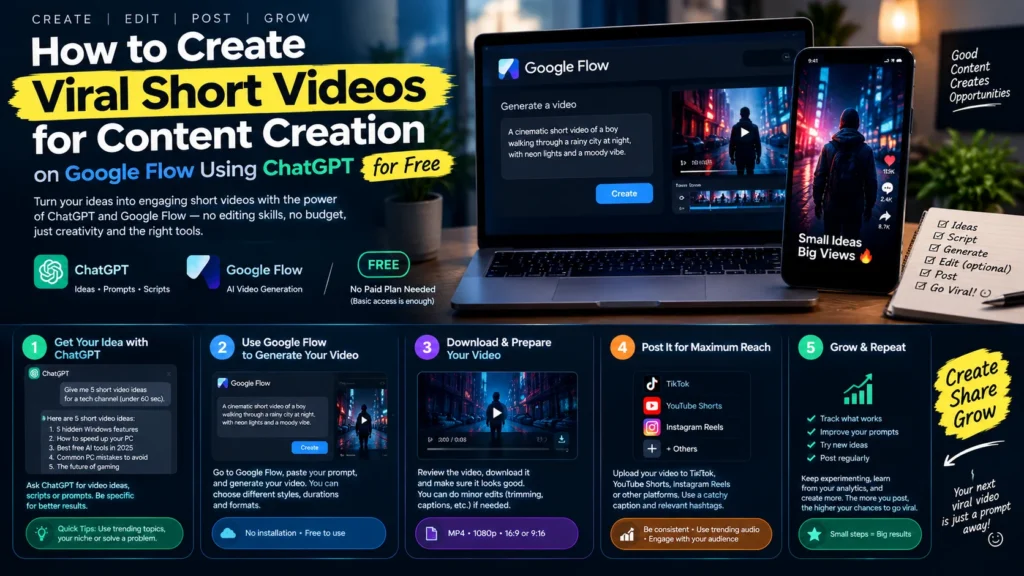
With the emergence of artificial intelligence models, creator workflows have evolved. By pairing ChatGPT as your visual creative director with Google Flow (Google’s generative video workspace powered by Veo technology), you can design, render, and assemble professional 8-to-10-second short clips without spending a single dollar.
This comprehensive guide covers the end-to-end framework: generating structural prompts, establishing visual continuity through reference images, maximizing Google Flow’s daily free credits, and polishing the final render into a high-converting daily short video.
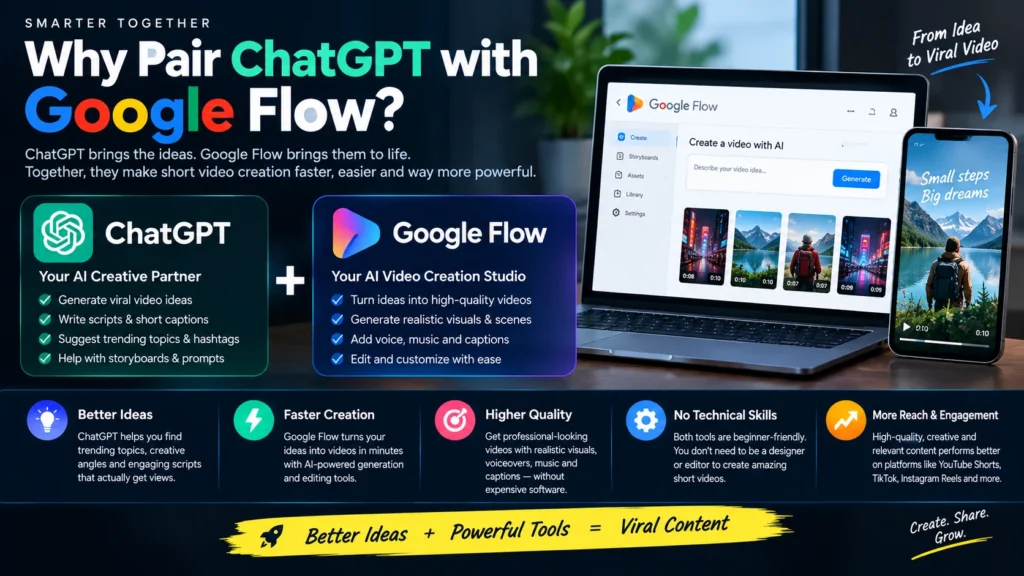
Why Pair ChatGPT with Google Flow?
Generative AI video models are only as good as the prompt parameters provided to them. If you give an AI video tool a vague text input such as “a man walking down a street,” the platform will make random assumptions about camera movement, color grading, framing, lighting, and art style. The resulting video often looks jittery or visually flat.
Using ChatGPT as an initial prompting layer transforms your video creation workflow into a streamlined production pipeline:
- Cinematic Language Translation: ChatGPT translates basic content concepts into specialized camera directions (e.g., dolly zoom, rack focus, 35mm anamorphic lens, 24fps film grain).
- Stylistic Continuity: ChatGPT maintains persistent stylistic descriptors across multiple prompts, ensuring Scene 1 and Scene 2 share identical lighting and color grading.
- Prompt Disambiguation: By splitting visual generation into a static image prompt and an animation prompt, you prevent generative video tools from degrading character features.
Understanding Google Flow’s Free Plan & Daily Constraints
To build a consistent content creation pipeline, you need to understand the platform mechanics and resource boundaries of Google Flow’s free plan.
Credit Allocation and Usage Rate
Google Flow operates on a daily refreshing credit system designed to let creators experiment with high-end generation models:
- Daily Allowance: Free tier users receive a renewed pool of credits every 24 hours.
- Model Consumption: Generating a high-definition video using standard models (such as Veo 3.1 Fast or Veo Lite) consumes approximately 15 to 20 credits per generation run depending on duration settings.
- Daily Output: With this credit allowance, you can reliably render 2 high-quality video clips per day (each lasting 8 to 10 seconds).
By generating 2 distinct scenes per day, you produce 16 to 20 seconds of raw AI video footage daily—the ideal length for an engaging short video or Instagram Reel once trimmed and edited.
Step-by-Step Workflow: From Prompt to Final Daily Reel
To maintain control over output quality, follow this five-stage production framework:
- Step 1: Prompting in ChatGPT
- Step 2: Reference Image Generation
- Step 3: Google Flow Animation
- Step 4: Stitching & Editing
- Step 5: Publishing & Optimization
Step 1: Crafting Master Prompts with ChatGPT
Instead of asking ChatGPT for a raw script, instruct it to act as an AI Video Director. You want ChatGPT to produce two separate outputs for every video scene: an Image Generation Prompt and a Motion Prompt.
Master ChatGPT Production Prompt Template
Act as an expert AI Video Director and Visual Stylist. I want to create an 8-second vertical short video (9:16 aspect ratio).My video theme is: [INSERT YOUR TOPIC HERE – e.g., Futuristic Urban Streetwear Showcase]Please generate two distinct prompts:
- Image Prompt: A highly detailed, photorealistic prompt for generating a static hero reference image. Include details on subject, apparel, background, camera focal length, lighting, and lighting temperature.
- Motion Prompt: A detailed motion control prompt for Google Flow describing subtle subject movements, camera paths (e.g., slow dolly shot, pan), particle effects, and lighting shifts over an 8-to-10 second clip.
Example Output Generated by ChatGPT
- Static Image Prompt:
“A full-body street-style shot of a fashion model wearing modern minimalist athletic wear on a rain-slicked city sidewalk at twilight, cinematic neon blue and orange lighting, shot on 35mm lens photography, shallow depth of field, 8k resolution, ultra-detailed fabric textures.” - Google Flow Motion Prompt:
“Slow cinematic dolly forward toward the subject, subtle falling rain droplets reflecting neon street lights, soft wind shifting the fabric of the outerwear, steady 24fps motion, no camera jitter.”
Step 2: Generating the Static Reference Image
While Google Flow can generate videos from pure text, using an Image-to-Video approach yields far superior spatial control and hyper-realistic detail.
- Copy the Static Image Prompt generated by ChatGPT.
- Paste it into an AI image generator (such as DALL-E 3 within ChatGPT, Midjourney, or Google’s ImageFX).
- Ensure the output ratio is set to vertical format (9:16).
- Review the image for crisp details and subject clarity. Download the high-resolution image file to your workstation or mobile device.
Step 3: Animating the Scene in Google Flow
Now that you have your high-resolution reference image and motion parameters, it’s time to bring the scene to life inside Google Flow.
- Navigate to the Google Flow Workspace and log in with your primary Google account.
- Select the Image-to-Video creation mode from the dashboard menu.
- Upload the static reference image you generated in Step 2 into the primary input slot.
- Paste the Motion Prompt from ChatGPT into the motion text descriptor field.
- Configure the generation settings:
- Aspect Ratio: Select 9:16 (Vertical).
- Duration: Set slider to 8s or 10s.
- Model Selection: Choose Veo 3.1 Fast (or equivalent efficient tier) to optimize credit efficiency.
- Click Generate and wait 60 to 90 seconds for the rendering pipeline to complete.
- Download the rendered MP4 video file.
- Repeat this exact process for Scene 2 using your remaining credits for the day.
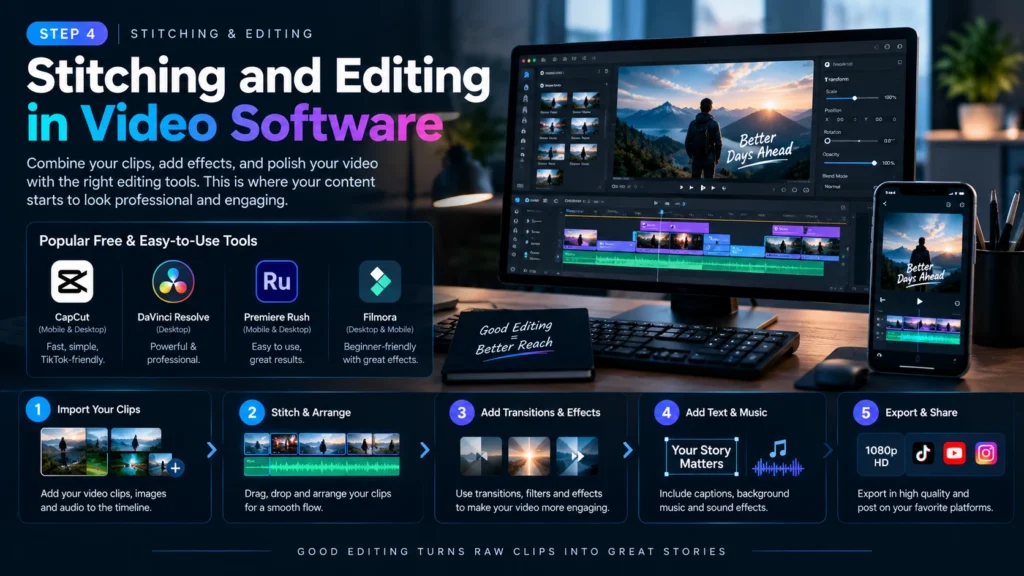
Step 4: Stitching and Editing in Video Software
Once you have downloaded your two 8-to-10-second video clips, open your favorite video editing application (CapCut, Adobe Premiere Pro, DaVinci Resolve, or InShot).
Post-Production Editing Checklist
- Timeline Assembly: Place Clip 1 and Clip 2 sequentially on a 9:16 vertical canvas.
- Speed Ramping: Apply a slight speed ramp (e.g., acceleration to 1.2x on entrance, dropping to 0.9x during key motion points) to give the AI footage an energetic rhythm.
- Transition Design: Add subtle seamless transitions between the two scenes—such as a quick optical whip-pan, light leak, or directional motion blur—to disguise the cut.
- Dynamic Captions: Use auto-caption engines to place high-contrast, animated captions in the center-bottom third of the screen.
- Sound Design: Add low-frequency riser sound effects (SFX) on scene cuts, accompanied by trending background audio tracks to boost social algorithm placement.
Best Practices for AI Short-Form Video Creation
| Parameter | Recommended Specification | Production Impact |
|---|---|---|
| Framing | 9:16 Vertical Aspect Ratio | Maximizes native screen real estate on mobile feeds |
| Motion Prompts | Explicit Camera Paths (Dolly, Pan, Tilt) | Prevents unwanted subject morphing and background warping |
| Lighting Style | High-Contrast Neon, Dusk, Golden Hour | Gives generative AI models clear edge detection boundaries |
| Credit Economy | 2 Clips / Day (Free Tier) | Sustains a consistent, daily 1-video publishing cadence |
External Resources & Industry References
To expand your digital marketing skills and stay current with AI video trends, explore these helpful resources:
- Official Google AI Tools: Check out the official Google Flow Workspace Guide for technical updates and extended feature documentation.
- Content Marketing Trends: Read HubSpot’s Video Marketing Report for actionable insights into audience retention strategies.
Summary Blueprint
By using ChatGPT as a creative prompt engine, generating clean reference images, animating clips in Google Flow on the free tier, and assembling the final cut in CapCut or Premiere Pro, you can create high-impact short videos every day. Keep your prompts detailed, manage your daily credits wisely, and maintain a consistent editing strategy to grow your brand’s reach across modern short-form video platforms
For more infomative artical vist zestwear