
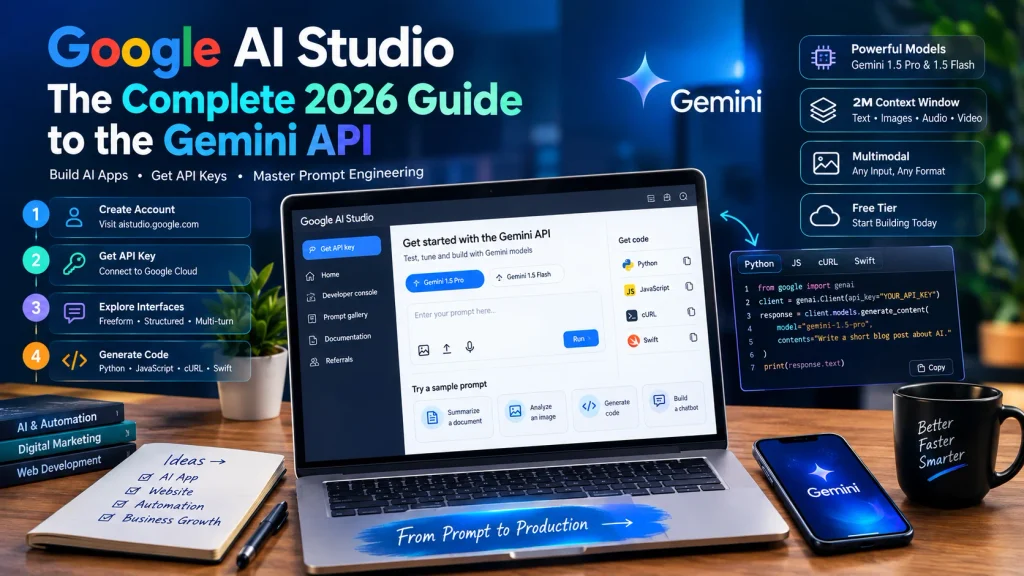
Learn how to use Google AI Studio to build powerful applications. This step-by-step tutorial covers Gemini API keys, prompt engineering, multimodal inputs, and model tuning.
How to Use Google AI Studio: The Complete 2026 Guide to the Gemini API
Generative AI has fundamentally changed how developers, digital marketers, and tech entrepreneurs build products. If you want to integrate Google’s most powerful AI models into your website, app, or daily workflow, learning how to use Google AI Studio is the crucial first step.
Google AI Studio is a web-based prototyping environment that allows anyone to experiment with the Gemini ecosystem—including Gemini 1.5 Pro and Gemini 1.5 Flash—and extract the API code necessary to build real-world applications. Unlike complex enterprise cloud platforms, AI Studio is designed for rapid experimentation, making it highly accessible whether you are a seasoned software engineer or a digital marketing professional automating your SEO workflows.
This comprehensive guide will walk you through everything you need to know about Google AI Studio, from generating your first API key to mastering advanced multimodal prompts and exporting production-ready code.
What is Google AI Studio?
Google AI Studio is essentially a sandbox for the Gemini API. It provides a visual interface where you can test different AI models, adjust their behavioral parameters, and craft complex prompts without writing a single line of code upfront. Once you are satisfied with how the AI responds in the visual interface, you can instantly click “Get Code” to export your prototype into Python, JavaScript, cURL, or Swift.
Key features that make Google AI Studio indispensable include:
- Access to Cutting-Edge Models: It provides direct access to Google’s flagship models, including the highly efficient Gemini 1.5 Flash and the reasoning-heavy Gemini 1.5 Pro.
- Massive Context Windows: You can process up to 2 million tokens in a single prompt. This means you can upload entire codebases, hour-long video files, or hundreds of PDF documents for the AI to analyze at once.
- Multimodal Capabilities: The platform natively understands text, images, audio, and video simultaneously.
- Generous Free Tier: Google currently offers a highly competitive free tier, allowing developers and marketers to build and test robust applications without immediate overhead costs.
Step 1: Setting Up Your Account and API Key
Before you can build anything, you need to authenticate your access to Google’s generative models. Generating an API key is the bridge between Google’s servers and your local application or website.
- Navigate to the Platform: Go to
aistudio.google.comand log in with your standard Google Workspace or Gmail account. - Locate the API Key Menu: On the left-hand navigation sidebar, click on the “Get API key” button.
- Create the Key: Click the prominent “Create API key” button. You will be prompted to either link the key to an existing Google Cloud project or create a new project entirely within AI Studio. For beginners, creating a new project via the UI is the fastest route.
- Secure Your Key: Once generated, copy the alphanumeric string. Treat this key like a password. Never hardcode it directly into public GitHub repositories or front-end client-side code where users can steal your quota. Always store it in a secure
.envfile.
Step 2: Navigating the Three Prompt Interfaces
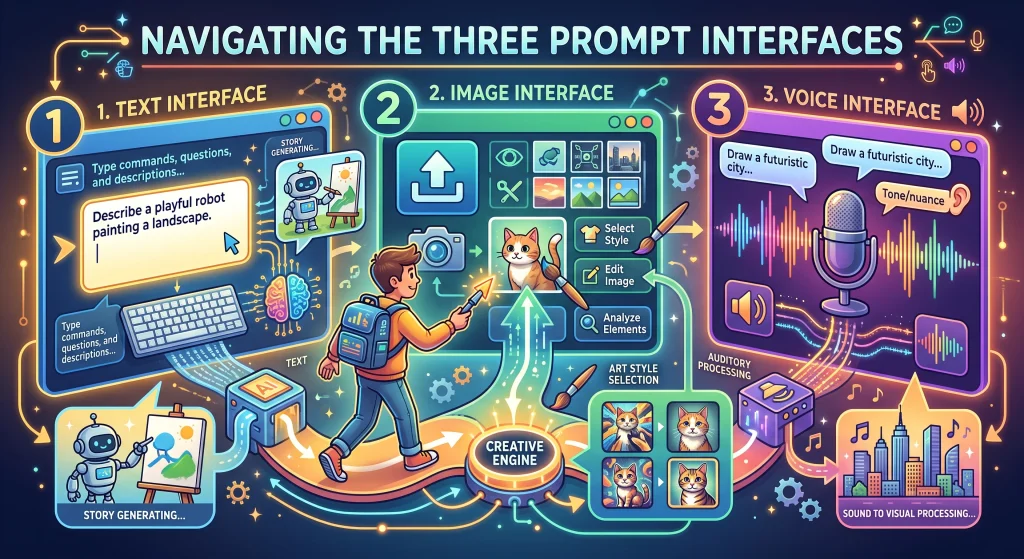
Understanding how to use Google AI Studio requires mastering its three distinct prompting interfaces. Depending on your end goal, you will choose one of the following setups:
1. Freeform Prompts
The Freeform prompt interface operates much like a blank digital canvas. It is the most open-ended environment available in the studio. You can combine text instructions, upload images, attach audio files, and ask the model to generate a response based on the combined data.
Best Use Case: Summarizing long articles, drafting creative content, or extracting data from a specific image (e.g., uploading a chart and asking the AI to explain the data trends).
2. Structured Prompts
Structured prompts are designed for tasks that require strict, repeatable output formats. If you are building an app that categorizes customer reviews, you need the AI to output data consistently. This interface allows you to provide the AI with explicit “Input” and “Output” examples (known as few-shot prompting).
Example Setup in Structured Prompts:
- System Instruction: “You are an SEO expert. Categorize the following keywords by user intent.”
- Example 1 Input: “Buy running shoes online”
- Example 1 Output: “Transactional”
- Example 2 Input: “How to tie running shoes”
- Example 2 Output: “Informational”
By providing these examples, the AI learns the exact structure you expect, virtually eliminating random or incorrectly formatted responses in your final application.
3. Chat Prompts
The Chat prompt interface is designed specifically for building conversational agents and chatbots. It allows you to simulate a back-and-forth dialogue between a “User” and the “Model.” You can pre-program the history of the conversation to give the AI context before the real user ever types a word.
Best Use Case: Building a customer service chatbot for your digital marketing agency, or creating a specialized AI tutor that remembers the context of the current conversation.
Step 3: Mastering Advanced Model Parameters
To truly understand how to use Google AI Studio like a professional, you must learn how to manipulate the model parameters located on the right-hand side of the screen. These sliders control the ‘personality’ and predictability of the AI. Before tweaking these settings, it is highly recommended to review [Google’s official Gemini API documentation] on prompting strategies, which explains exactly how temperature and token limits dictate the quality of your final output.
Temperature
Temperature controls the randomness of the output. It ranges from 0.0 to 2.0.
- Low Temperature (0.0 – 0.3): The model becomes highly deterministic and factual. Use this for data extraction, coding, and analytical tasks where accuracy is paramount and creativity is a liability.
- High Temperature (0.7 – 1.5): The model becomes more creative, diverse, and unpredictable. Use this for brainstorming marketing campaigns, writing fiction, or generating highly engaging social media copy.
Top-K and Top-P
These settings work alongside Temperature to control how the AI selects the next word in a sentence.
- Top-K limits the AI’s vocabulary choices to the K most likely next words. Lowering this number forces the AI to stick to common phrasing.
- Top-P limits the choices based on cumulative probability. Adjusting this helps maintain the thematic consistency of a long-form article.
System Instructions (System Prompt)
Located at the top of the interface, the System Instruction box allows you to define the fundamental persona and rules for the AI. For example, pasting: “You are a senior digital marketing strategist. You must always answer in concise, bulleted lists and never use jargon,” will universally constrain the model’s behavior across all subsequent prompts.
Safety Settings
Google AI Studio includes robust, adjustable safety filters. You can adjust the threshold for harassment, hate speech, sexually explicit content, and dangerous content. If you are building an app for the general public, it is best to keep these filters strictly enforced.
Step 4: Leveraging Multimodal Inputs

One of the greatest advantages of the Gemini 1.5 architecture is its massive context window and native multimodal processing. In Google AI Studio, you can click the “+” (Insert) button to upload various file types directly into your prompt.
- Video Analysis: You can upload an MP4 file of a podcast or webinar. You can then prompt the AI: “Watch this video and provide a timestamped summary of the three most important marketing strategies discussed.” The model processes the visual frames and the audio transcript simultaneously.
- Document Processing: Upload massive PDF reports (up to thousands of pages). You can ask the AI to find specific statistics, compare data between two different uploaded reports, or rewrite a highly technical PDF into a 500-word blog post suitable for a general audience.
- Audio Files: Upload customer service call recordings to have the AI analyze customer sentiment or extract action items.
Step 5: Exporting Code and Building Your App
Once you have perfected your prompt, adjusted the temperature, and provided the right examples in the visual interface, you are ready to move from prototyping to production.
At the top right of the screen, click the “Get Code” button. AI Studio will automatically generate the exact code snippet required to replicate your setup in your application.
You can select from multiple programming languages:
- Python: The industry standard for AI development and data science.
- JavaScript / Node.js: Perfect for integrating the API directly into a web application or a custom WordPress plugin.
- cURL: Ideal for testing the API via your command-line interface or integrating with no-code tools like Make or Zapier.
All you have to do is copy the generated code, paste it into your development environment, insert the API key you generated in Step 1, and your application will instantly connect to the Gemini models.
Google AI Studio vs. Vertex AI: Which Do You Need?
As your traffic scales, you may encounter the term “Vertex AI.” It is important to understand the difference to ensure you are using the right platform for your business needs.
Google AI Studio is the prototyping sandbox. It is the best place for developers, hobbyists, and digital marketers to quickly test ideas, build initial applications, and experiment with prompts. It prioritizes ease of use and speed of deployment.
Vertex AI is Google Cloud’s enterprise-grade AI platform. Once your application built in AI Studio becomes massively successful and requires enterprise-level data governance, advanced security compliance (like HIPAA), or complex MLOps (Machine Learning Operations) pipelines, you will migrate your project to Vertex AI. For 90% of web developers and digital marketers starting out, Google AI Studio is more than sufficient.
Strategic Use Cases for Digital Marketers

If you are running a digital marketing blog or an agency, mastering Google AI Studio opens up highly lucrative automation opportunities:
- Programmatic SEO: Use the API to automatically generate hundreds of highly targeted, location-based landing pages by feeding structured data into a fine-tuned Gemini prompt. Additionally, understanding how these language models process information is the first step in mastering your overall [AI search optimization strategy], ensuring your brand is actually cited when customers ask generative engines for recommendations.”
How to set up the link in WordPress. - Automated Content Audits: Upload your website’s XML sitemap and organic traffic data, and ask the model to identify keyword gaps and suggest content refresh opportunities.
- Dynamic Chatbots: Replace generic website chat widgets with an intelligent agent powered by Gemini, trained specifically on your brand’s voice and product catalog.
Pro Tips and Tricks for Google AI Studio
As you master how to use Google AI Studio, keeping a few advanced best practices in mind will save you time and optimize your API usage.
- Monitor Your Token Count: Always keep an eye on the token counter at the bottom of the interface before running massive multimodal prompts. This ensures you stay within the free tier limits and avoid unexpected errors.
- Build a Prompt Library: Do not lose your best setups. Use the “Save” feature in the top menu to keep a personal library of your most effective structured and freeform prompts directly in your Google workspace.
- Anchor with System Instructions: If the AI generates inconsistent formats, do not just change your main input. Tweak the ‘System Instructions’ to firmly lock in the model’s exact persona and strict output rules.
- Test Edge Cases: Before clicking “Get Code,” intentionally test your prompts with unexpected inputs (like a blurry image or a poorly phrased question). This helps you see how the model handles errors before you deploy the code to your actual website visitors.
The Future of AI Prototyping
Learning how to use Google AI Studio is no longer just a skill for software engineers; it is a foundational competency for digital marketers, content creators, and modern business owners. By mastering the prompt interfaces, understanding model parameters, and utilizing the massive multimodal context window, you can rapidly build AI-powered tools that scale your business, reduce operational costs, and provide incredible value to your audience.
Start by generating a free API key, experiment with a Freeform prompt, and watch as your ideas transform into functional code in seconds.