
Learn how to find and fix broken links for free using Google Search Console, link checker tools, and simple WordPress troubleshooting steps.
How to Find and Fix Broken Links on Your Website for Free
Broken links can frustrate visitors, interrupt navigation, and make it harder for people to reach useful pages on your website. They occur when a link points to a page or resource that is no longer available, uses an incorrect URL, or cannot be reached.
The good news is that you can find and fix many broken links without buying expensive SEO software. Free tools, browser checks, and Google Search Console can help you identify problems and decide which ones need attention.
In this guide, you will learn how to find broken links on your website, fix them safely, and maintain a better browsing experience.
What Are Broken Links?
A broken link is a hyperlink that no longer takes a visitor to the intended destination.
For example, imagine publishing an article about free SEO tools and linking to a resource. If the resource moves to another URL or the original page is removed, the link may stop working.
Broken links generally fall into two categories:
- Internal broken links: Links on your website that point to unavailable pages on your own domain.
- External broken links: Links from your website that point to unavailable pages on another website.
A URL returning a 404 error is one common example, but not every 404 response means a mistake has occurred. If a page was intentionally removed and has no suitable replacement, returning a 404 may be correct.
Search Console Help
+1
Why Should You Fix Broken Links?
Broken links are worth reviewing because they can affect how visitors use your website and how search engines discover its pages.
1. Improve the User Experience
Visitors expect links to lead to relevant information. When a link fails, they may have to return to Google or search your website again to find the information they need.
Fixing important broken links helps readers navigate your content more easily.
2. Help Search Engines Discover Relevant Pages
Google uses crawlable links to discover pages and understand relationships between them. A broken internal link can interrupt a path that visitors and crawlers would otherwise follow. Google recommends using descriptive, crawlable links that point to valid destinations.
Google for Developers
+1
3. Keep Your Content Useful
Articles can remain useful for years, but linked resources sometimes change. Reviewing your links periodically helps you replace outdated references and keep your instructions accurate.
Important: Fixing broken links is good website maintenance, but it does not guarantee higher rankings or more traffic. Prioritize links that genuinely matter to visitors.
You do not need to pay for an SEO subscription to start checking your website. Use the methods below to find different types of link problems.
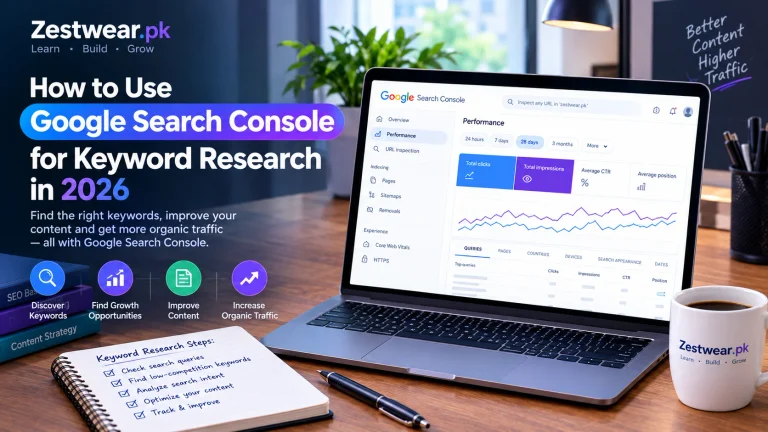
Method 1: Check Google Search Console
Google Search Console can help you investigate indexing issues and URLs that Google has tried to access.
Follow these steps:
- Open Google Search Console.
- Our guide to using Google Search Console for keyword research explains how to navigate its reports and investigate website search data
- Select your website property.
- Open the Page indexing report, if available in your property.
- Review reported URLs and their reasons for not being indexed.
- Investigate relevant not-found URLs and determine whether they are linked incorrectly, intentionally removed, or moved elsewhere.
- Use the URL Inspection tool to check a specific URL when necessary.
Google Search Console is useful for investigating URLs Google has discovered, but it is not a complete report of every broken hyperlink on every page of your website. A 404 URL may have been removed intentionally or may have been linked from another website.
Search Console Help
+1
Image placement: Insert Image 1 here, after this section.
Method 2: Use a Free Website Link Checker
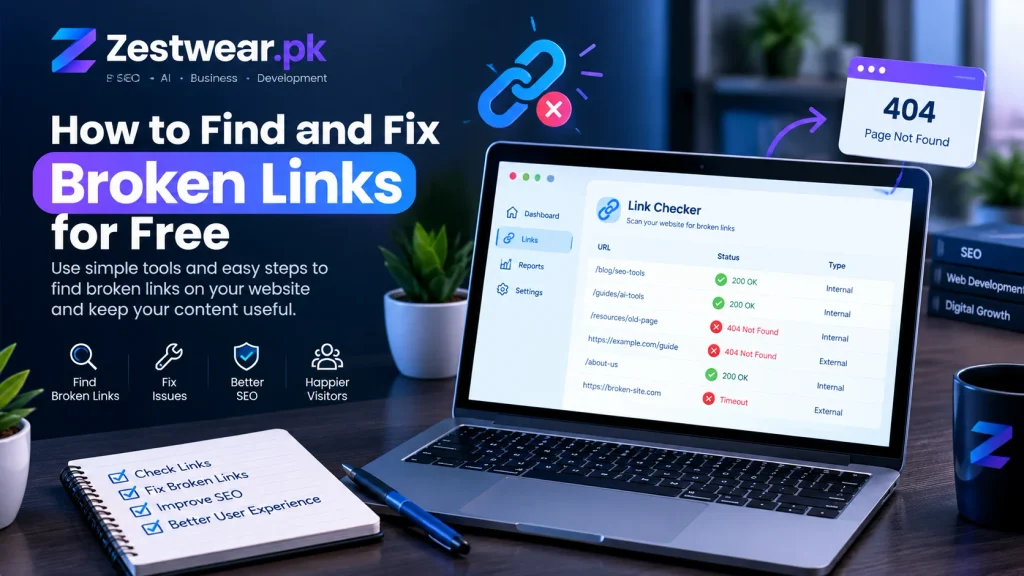
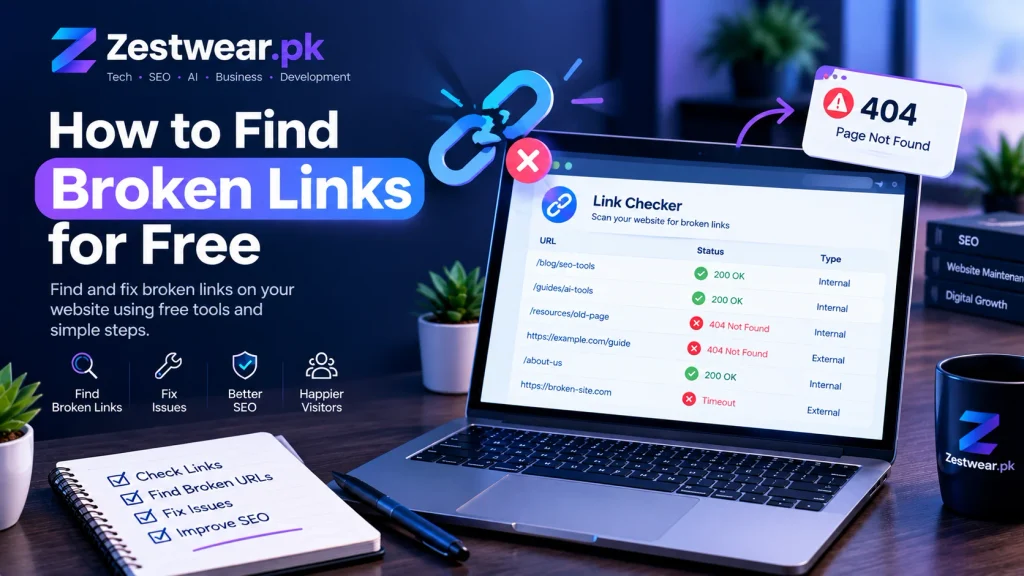
A website link checker can crawl pages and test links to identify potential errors. Availability, crawl limits, and features vary by tool.
Explore our guide to free SEO tools for more resources that can help with website analysis and optimization
You can start with these options:
- W3C Link Checker — checks links on a supplied webpage.
- Google Search Console — helps investigate Google-discovered URLs and indexing issues.
- Your browser — useful for manually checking a link’s destination and confirming whether a page loads.
To use a link checker:
- Open the tool.
- Enter the URL of a page you want to check.
- Start the scan, if the tool supports it.
- Review the reported URLs and status codes.
- Open suspicious results manually before changing anything.
- Record the source page, destination URL, and proposed fix.
Some free checkers scan only one page or impose usage limits. If you need to check an entire website, confirm the tool’s current crawl limits first.
Method 3: Check Links Manually
Manual checking is useful when your website has only a few articles or when you want to verify a specific link.
Open the published article, click each important link, and confirm that the destination matches the text surrounding it.
Look for problems such as:
- A URL that contains a spelling mistake.
- An outdated link to a resource that has moved.
- A link that redirects to an unrelated page.
- A page that displays a genuine not-found error.
- An external resource that has been removed.
Manual checks are slower than crawling tools, but they help you understand what the reader actually experiences.
How to Fix Broken Links on Your Website
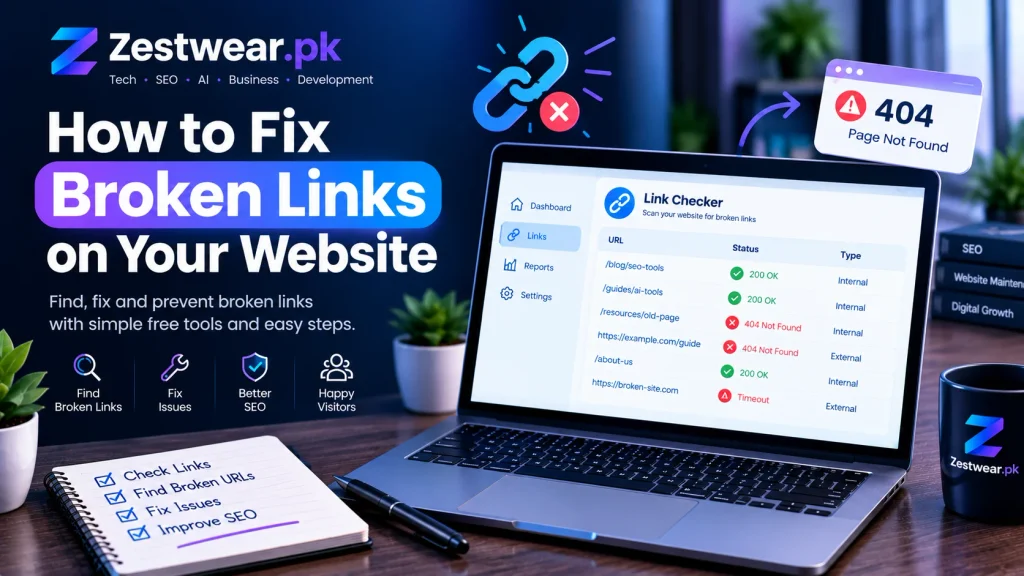
Finding a broken link is only the first step. The correct fix depends on why the link stopped working.
1. Correct the URL
Sometimes a link is broken because of a simple typing mistake or an outdated address.
For example, a link might point to the wrong page slug or contain an extra character.
How to fix it:
- Edit the article in WordPress.
- Select the linked text.
- Click the link icon.
- Replace the incorrect URL with the correct, verified URL.
- Update the article.
- Open the published page and test the link again.
This is usually the simplest solution when the intended destination still exists.
2. Replace a Removed External Link
If another website has removed a resource, look for the same information on a reliable alternative source.
Choose a replacement that supports the original point and provides useful information to your readers. An official documentation page is often a good option for technical tutorials.
If no suitable replacement exists, remove the link and revise the sentence so it remains accurate without it.
Do not replace a broken link with an unrelated website merely to keep a hyperlink in the article.
3. Update Internal Links to Moved Pages
If you have changed a page’s URL, update links across your website to point directly to the new URL.
For example, if an article has moved from an old slug to a new one, replace the old internal links wherever practical.
If the old URL has a clear, permanent replacement, a properly configured 301 redirect can guide visitors and search engines to the new destination. Google recommends permanent redirects when a page has genuinely moved.
Google for Developers
+1
Avoid redirecting every deleted page to your homepage. Use a relevant replacement where one exists; otherwise, a genuine 404 or 410 response may be appropriate.
4. Remove Links That No Longer Add Value
Not every broken link needs a replacement.
If the linked resource is no longer relevant and no suitable alternative exists, remove the hyperlink and edit the surrounding text.
The goal is to preserve the meaning and usefulness of the article, not to maintain a particular number of links.
How to Find Broken Links in WordPress
If Zestwear.pk runs on WordPress, you can check links directly in the editor.
- Open your WordPress dashboard.
- Go to Posts → All Posts.
- Edit an article that contains links you want to review.
- Select linked text and inspect the URL in the link toolbar.
- Open the destination in a separate browser tab and verify it.
- Correct or remove the link if needed.
- Update the post and test the published version.
For a website with many articles, start with your most important pages instead of trying to inspect everything at once.
You can also review your published content when updating old articles. If you discover an outdated external reference, replace it with a verified source or remove it if it no longer helps the reader.
How to Prevent Broken Links in the Future
You can reduce link problems by making a few simple checks part of your publishing routine.
When improving older content, you can also review our guide on finding low-competition keywords to plan relevant SEO updates
Check Links Before Publishing
Before publishing a new article, verify that its internal and external links open the intended pages.
Make sure that:
- The URL is correct.
- The destination is relevant to the linked text.
- The page loads successfully.
- The source is trustworthy enough for the claim being made.
- Internal links point to the correct published articles.
Google recommends descriptive anchor text that explains what readers can expect when they follow a link.
Google for Developers
Review Older Articles Periodically
Older posts can contain outdated product links, renamed resources, or references to pages that no longer exist.
Create a simple maintenance schedule—for example, review important articles every few months and check them sooner if readers report a problem.
Keep a Broken-Link Tracking Sheet
A basic spreadsheet can help you record and resolve issues.
| Column | What to record |
|---|---|
| Source page | Article containing the link |
| Broken URL | Destination that failed |
| Link type | Internal or external |
| Issue | 404, incorrect URL, redirect, or other problem |
| Action | Correct, replace, remove, or investigate |
| Status | Pending or fixed |
This makes it easier to prioritize important links and avoid checking the same problem repeatedly.
Frequently Asked Questions
Do broken links hurt SEO?
Broken links can make navigation and page discovery more difficult, particularly when important internal links fail. However, not every 404 is a problem, and fixing links does not automatically improve rankings.
What is the difference between a 404 error and a broken link?
A 404 is an HTTP status indicating that a requested resource was not found. A broken link is a hyperlink that fails to reach its intended destination. A broken link may lead to a 404, a redirect problem, or another type of failure.
Can I find broken links for free?
Yes. You can manually check links, use free link-checking tools, and investigate relevant URLs in Google Search Console. The amount of automation available depends on the tool.
Should I redirect every broken URL?
No. Use a redirect when a page has moved or has a clear, relevant replacement. If the page has genuinely been removed and has no replacement, returning a 404 or 410 may be correct.
Google for Developers
How often should I check my website for broken links?
For a small website, periodically reviewing important pages is a reasonable starting point. Check more frequently if you publish often, change URLs regularly, or maintain many external references.
Final Thoughts
Finding and fixing broken links is a practical part of maintaining a helpful website. Start with important pages, use free tools to identify possible errors, verify each destination, and choose the fix that best serves your visitors.
For Zestwear.pk, make link checking part of your publishing workflow. Correct internal URLs, replace outdated references with reliable alternatives, and remove links that no longer provide value. These habits can help keep your technology and SEO guides useful as your website grows.