
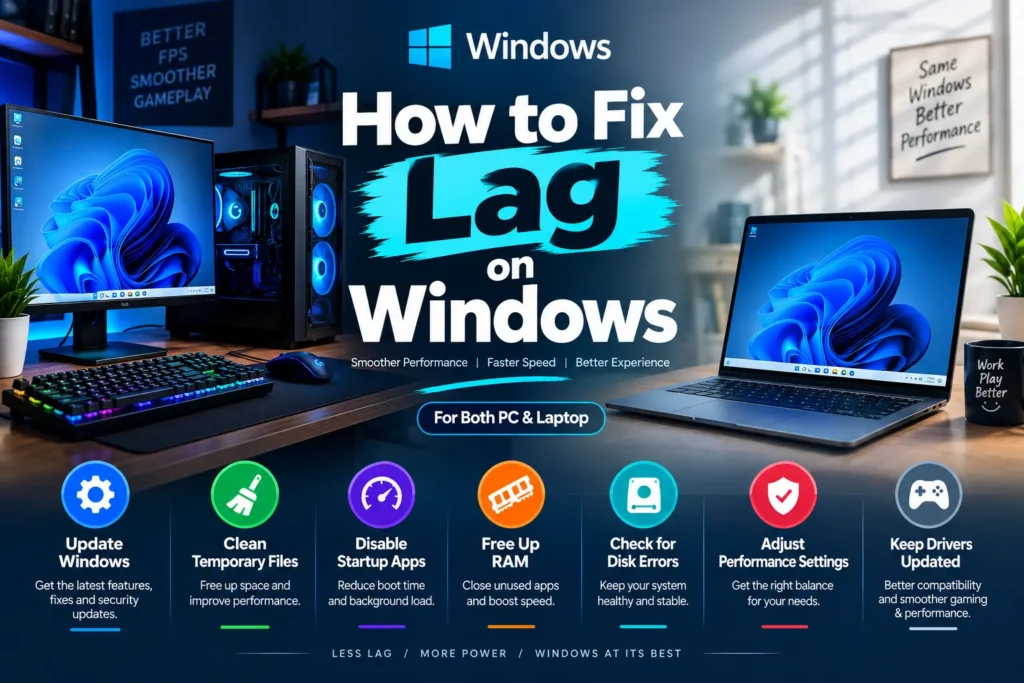
How to Fix Lag on Windows: My Proven Settings After 7 Years on Low-End PCs
If you have ever felt like throwing your laptop across the room because a single browser tab took three minutes to respond, I know exactly what you are going through.
For the past 7 years, I haven’t had the luxury of high-end setups, 32 Gigabytes of RAM, or top-tier dedicated GPUs. Instead, I’ve been running low-end, budget Windows PCs, pushing basic dual-core processors and limited memory to their absolute limits. During those 7 years of daily frustration, trial, error, and system crashes, I learned a crucial truth about Windows performance: you do not need to buy expensive hardware upgrades or fancy software to make a slow PC feel brand new again.
Most modern operating systems come bloated with unnecessary visual effects, background trackers, and automatic auto-start services that drain your system’s limited resources. By stripping away this fluff and tweaking a few core settings, you can eliminate system stuttering and boost your daily responsiveness.
Here is the exact, step-by-step optimization manual I’ve perfected over 7 years of low-spec computing.
1. Clean Up Startup Apps (Keep Only the Essentials)
When you boot your computer, dozens of applications try to stealthily launch in the background. On a machine with limited RAM and a slower drive, this creates a massive bottleneck right from the moment you log in.
Programs like Spotify, Discord, Steam, OneDrive, and browser updaters do not need to be running 24/7. Disabling them from starting automatically keeps your boot times fast and your baseline RAM consumption low.
Step-by-Step Instructions:
- Open Task Manager: Press Ctrl + Shift + Esc on your keyboard to instantly launch Task Manager. If you see a compact view, click More details at the bottom.
- Navigate to Startup Apps: Select the Startup apps tab (represented by a tachometer icon on Windows 11, or labeled Startup on Windows 10).
- Disable Non-Essential Apps: Review the list of apps. Right-click on every program you don’t immediately need upon turn-on and select Disable.
What to leave enabled: Keep essential system items like your audio controller (e.g., Realtek HD Audio Universal Service) and your display driver applications. Disable everything else—you can always open Discord or Steam manually when you actually want to use them.
2. Disable Windows Animations and Visual Effects
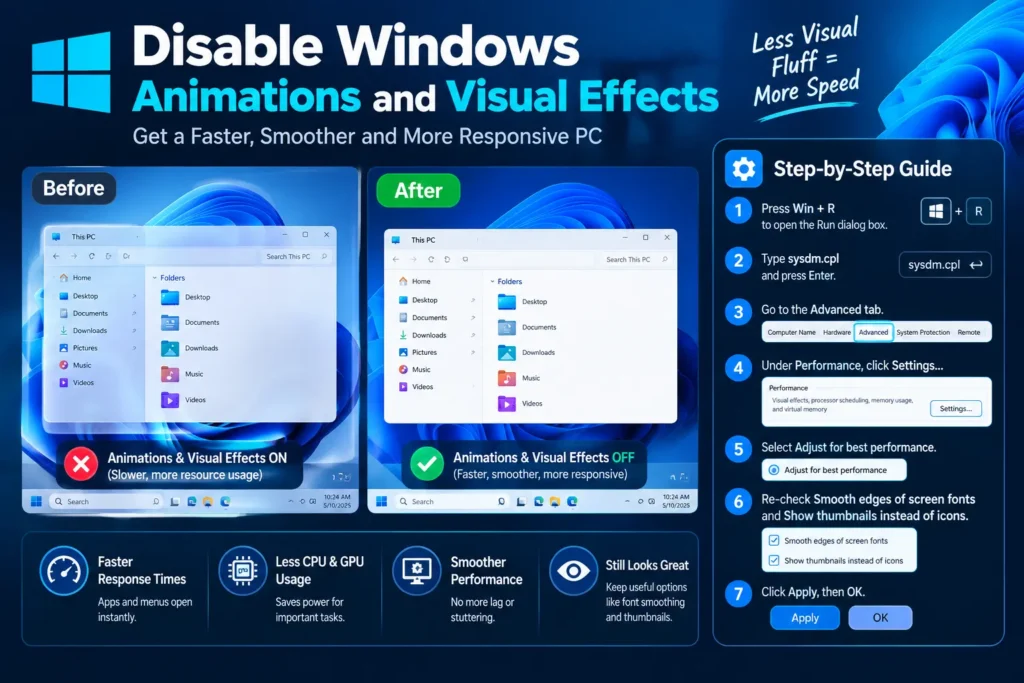
Windows looks modern thanks to translucent window borders, smooth fade-in animations, drop shadows, and soft transitions. However, rendering these eye-candy features consumes valuable GPU and CPU power—resources that budget hardware simply cannot afford to waste.
Turning off these animations gives you an instant, raw boost in user interface responsiveness. Windows will feel snappier because folders, menus, and windows will open instantly without waiting for transition animations to finish rendering.
Step-by-Step Instructions:
- Press Win + R on your keyboard to open the Run dialog box.
- Type sysdm.cpl and press Enter (this opens System Properties directly).
- In the top navigation bar, switch to the Advanced tab.
- Under the Performance section at the top, click the Settings… button.
- In the new window, select the radio button for Adjust for best performance. This instantly unchecks all visual flair options.
- (Recommended Tweaks) Scroll down the list of checkboxes and re-check Smooth edges of screen fonts and Show thumbnails instead of icons. This ensures text remains clear and image previews remain visible without taxing your system.
- Click Apply, then OK.
3. The MSConfig Service Cleanup Trick
Background services are silent resource thieves. Unlike startup apps, services run deep within the operating system, often without showing an icon in your taskbar. Many software programs install updater services that remain active long after you close the app.
This simple msconfig trick lets you disable non-essential background services safely without disrupting Windows operations.
Step-by-Step Instructions:
- Launch System Configuration: Press Win + R, type msconfig into the input box, and press Enter.
- Hide Core Microsoft Services: Click on the Services tab. At the very bottom left, check the box that says Hide all Microsoft services. (Warning: Never skip this step. Hiding Microsoft services guarantees you won’t accidentally disable critical operating system functions.)
- Disable Third-Party Background Services: With Microsoft services hidden, click Disable all. This stops third-party apps (like game launchers, updater tools, and utility software) from silently hogging background cycles.
- Uncheck Edge & Updater Services: Now, uncheck the Hide all Microsoft services box so the complete list returns. Scroll through the list and manually uncheck non-essential built-in updaters, such as Microsoft Edge Update Service (edgeupdate) and Microsoft Edge Elevation Service.
- Apply and Restart: Click Apply, then OK, and restart your computer to apply the clean boot environment.
4. Uninstall Third-Party Antivirus (Windows Defender Is Enough)
If you have installed third-party security programs like Avast, AVG, McAfee, Norton, or Malwarebytes Real-Time Protection, uninstall them immediately.
Heavy third-party antivirus suites are notorious performance killers on low-end systems. They routinely run background disk scans, inject browser extensions, show intrusive pop-up ads, and consume hundreds of megabytes of precious RAM.
Why Windows Defender Is Superior for Low-End Systems:
- Deeply Integrated: Built directly into Windows 10 and 11, meaning it doesn’t require extra background launcher bloat.
- Highly Rated: Consistently scores near top marks in independent cybersecurity benchmarks.
- Low Overhead: Operates with minimal CPU and RAM impact compared to third-party alternatives.
As long as you practice basic internet safety (avoiding suspicious downloads and unknown email attachments), Windows Security / Defender provides complete protection without crippling your computer’s speed.
5. Clean Up Your C: Drive (A Full Drive Destroys Performance)
One of the quickest ways to cause severe PC lag—especially on low-end systems—is letting your primary C: drive fill up to the brim.
Windows relies heavily on free storage space on your C: drive to manage system cache, temporary files, and virtual memory (paging file). When your C: drive turns red and runs out of room, Windows can no longer write temporary files efficiently, leading to massive system hangs, slow app launches, and complete freezes.
How to Safely Clean Your C: Drive Using Built-In Tools:
- Open Disk Cleanup: Press Win + R, type cleanmgr, and press Enter. Select your C: drive and click OK.
- Clean Up System Files: Once the window opens, click the button near the bottom that says Clean up system files. Select C: drive again if prompted. This scans for hidden, heavy files like old Windows update backups and installer logs.
- Delete Unnecessary Files: Check the boxes for Temporary files, Windows Update Cleanup, Recycle Bin, and Thumbnails. Click OK and confirm deletion.
- Clear Temporary Cache Folders: Press Win + R, type %temp%, and press Enter. Press Ctrl + A to select all files in the folder and delete them. (If Windows says a file is currently in use, simply skip it).
Rule of Thumb: Try to keep at least 15% to 20% of your C: drive free at all times so Windows has enough breathing room to function smoothly.
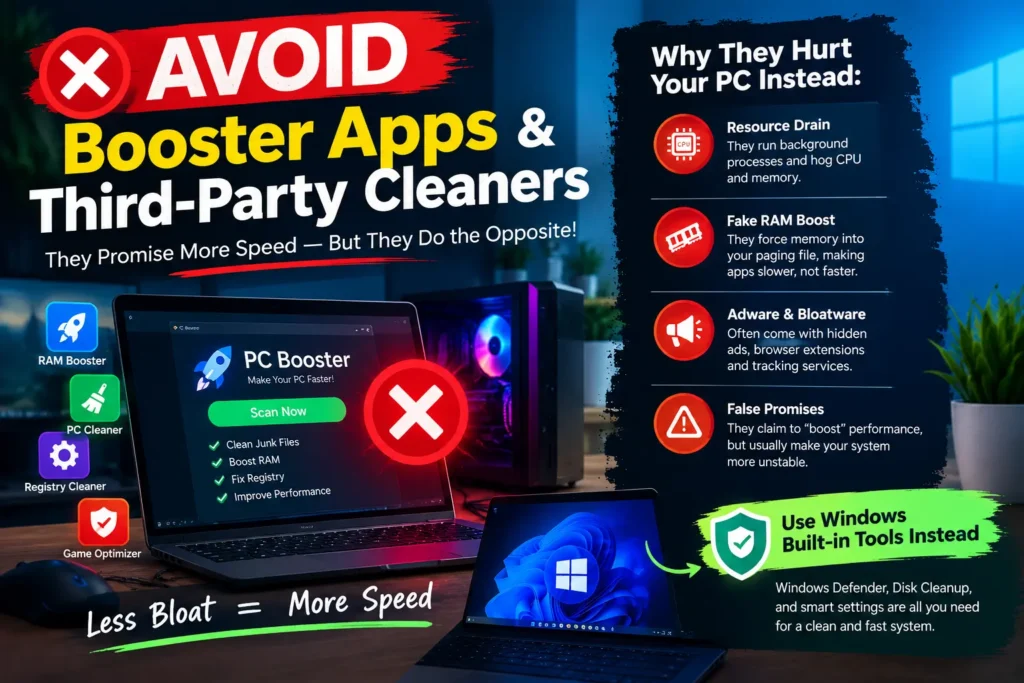
The Golden Rule: Avoid “Booster” Apps and Third-Party Cleaners
Before wrapping up, we must address the single biggest mistake low-end PC users make: downloading third-party “performance boosters.”
When your computer starts lagging, it is tempting to search for quick fixes like “RAM Booster,” “Game Optimizer,” or “Registry Cleaner.” Do not install these applications.
Through years of monitoring system processes, I discovered that these applications do the exact opposite of what they promise:
- Resource Drain: They constantly run background processes, hogging the very CPU power and memory you are trying to save.
- Aggressive RAM Flushing: Many “RAM Boosters” force active memory into your hard drive’s paging file. While your available RAM number looks higher, opening apps actually becomes significantly slower and causes severe micro-stutters.
- Adware & Bloatware: A large portion of free optimizer tools come bundled with hidden browser extensions, pop-up ads, and tracking services.
Windows handles system resources automatically. Your job is simply to remove background bloat so the built-in resource manager can do its work efficiently.
Summary of Optimization Tweaks
| Optimization Strategy | Target Problem | Performance Impact |
|---|---|---|
| Disable Startup Apps | High RAM usage on boot | Faster start times, lower idle RAM |
| Disable Animations | UI lag and GPU overhead | Instant folder and app opening |
| MSConfig Service Cleanup | Hidden background CPU usage | Reduced background processing loads |
| Uninstall 3rd-Party Antivirus | Constant disk scanning & pop-ups | Lower CPU load & faster file read speeds |
| Clean Up C: Drive | Low storage space & page file throttling | Restores system stability & prevents freezing |
| Remove “Booster” Apps | Memory thrashing & adware | Stable RAM allocation and system stability |
Final Thoughts: Simplicity Is Key
Fixing lag on a budget PC isn’t about finding a magic trick or downloading a secret utility. After 7 years of squeezing every drop of performance out of weak hardware, the secret boils down to one philosophy: Keep your system clean, minimalist, and lightweight.
By turning off flashy animations, stopping unnecessary services from starting, avoiding scammy performance tools, letting Windows Defender handle security, and keeping your C: drive clear, you eliminate the friction slowing down your hardware. Apply these tweaks today, and enjoy a faster, far more responsive PC. and get more tech related content on zest wear