

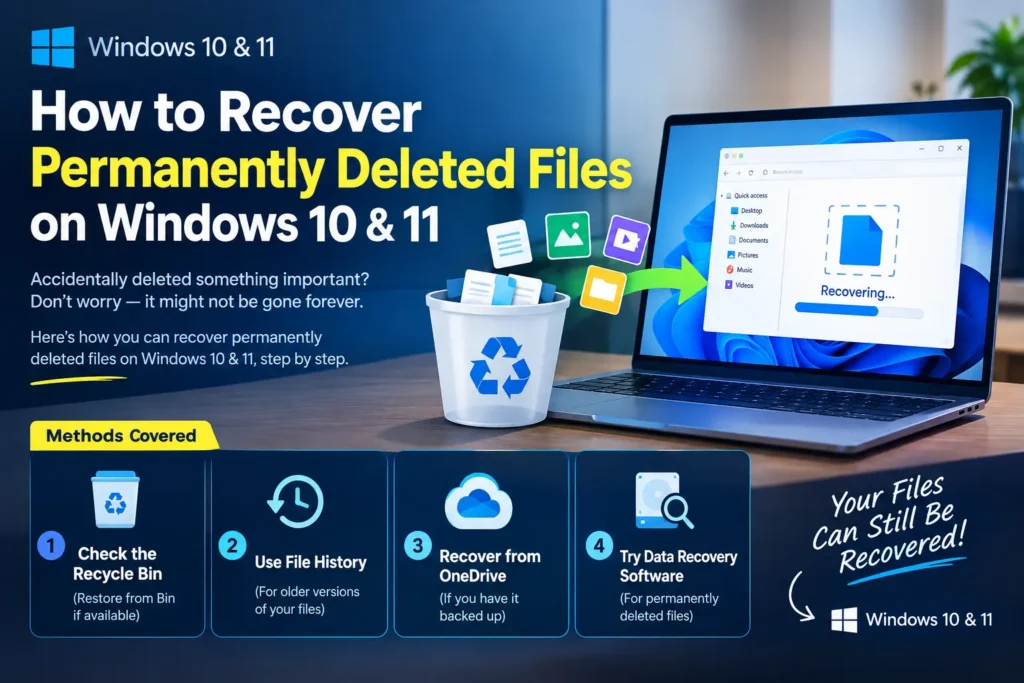
How to Recover Permanently Deleted Files on Windows 10 & 11
Accidentally wiping a secondary drive or executing a shift-delete on an essential folder is every computer owner’s worst nightmare. I faced this exact scenario recently when a careless click formatted a secondary storage drive packed with years of project archives, personal documents, and vital compressed .zip folders.
Panic immediately set in. However, data recovery on Windows is far from impossible if you act quickly and follow the right steps. In this comprehensive guide, I will share the exact process I used to salvage my formatted drive—from initial system checks to testing recovery software like Disk Drill—along with a realistic breakdown of free versus paid recovery tools.
1. The Critical First Step: Stop Writing Data Immediately
Before touching system settings or launching third-party software, stop using the affected drive immediately. Do not download new files, install software, or transfer data onto that drive.
When Windows deletes a file or formats a drive, it does not instantly erase the underlying data blocks. Instead, it simply marks the storage space as “available” for future use. The old data remains intact on the physical sectors until new information overwrites it. Writing new files onto the drive will permanently overwrite those hidden sectors, rendering recovery impossible.
2. Check Built-In Windows Recovery Tools First
If you accidentally deleted a file rather than formatting an entire drive, try Windows’ built-in recovery utilities before downloading third-party tools.
A. The Recycle Bin
For simple deletions, open the Recycle Bin on your desktop, locate the missing item, right-click it, and select Restore. The file will return to its original folder location.
B. File History
If you enabled Windows File History prior to losing your data:
- Open File Explorer and navigate to the folder where the deleted file was stored.
- Right-click inside the folder or on the file directory and select Properties.
- Select the Previous Versions tab.
- Choose a backup version created before the deletion and click Restore.
C. System Restore Points
If recent system changes caused data loss, search for Create a restore point in the Windows search bar, click System Restore, and select a restore point created before the issue occurred.
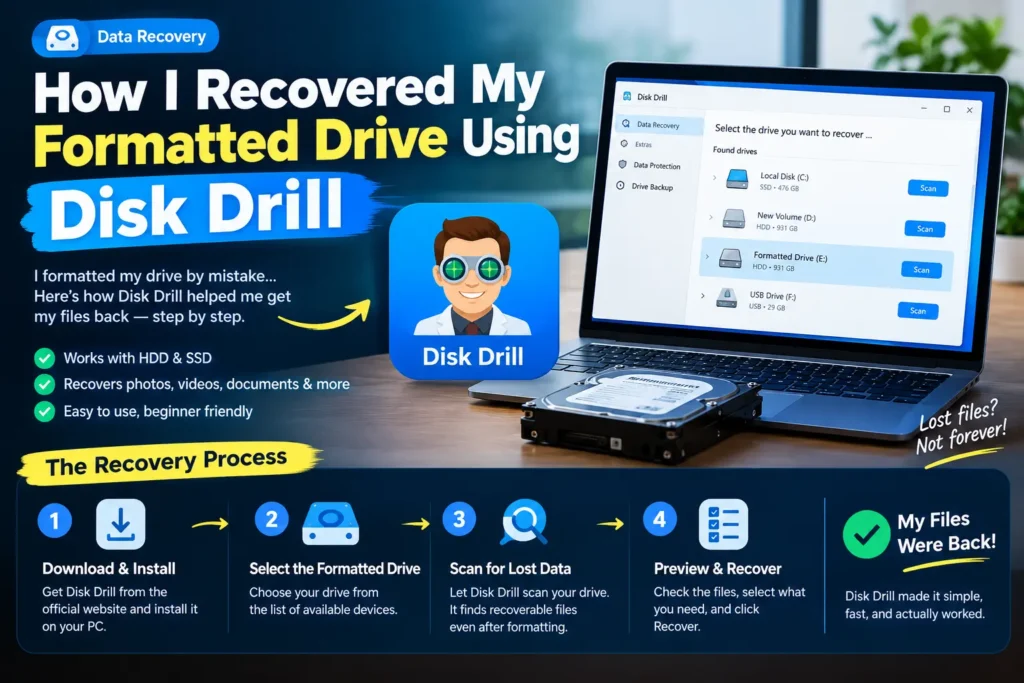
3. How I Recovered My Formatted Drive Using Disk Drill
When native Windows utilities failed to recognize my formatted drive’s previous file structure, I turned to Disk Drill for Windows. Disk Drill is a widely used data recovery application known for its deep scanning engine and file system support.
Step-by-Step Recovery Walkthrough
- Download and Safe Installation: I downloaded Disk Drill directly from the official developer site and installed it on my main C: drive—a completely separate physical drive from the formatted target drive. Installing software directly onto the drive you need to recover can overwrite the missing data.
- Select the Storage Device: Upon opening Disk Drill, the main dashboard displayed all detected internal drives, external storage devices, and raw partitions. I selected the formatted drive from the list.
- Run the Universal Scan: I clicked Search for lost data. Disk Drill initiated a comprehensive scan using multiple recovery methods, including Quick Scan, Deep Scan, and raw partition reconstruction.
- Filter and Preview Files: Once the scan finished, I used the left-hand navigation pane to filter the findings by category, specifically focusing on Archives (.zip, .rar) and Documents. I used Disk Drill’s built-in preview pane to inspect individual files before restoring them to ensure they were not corrupted.
- Execute Recovery: After selecting my essential .zip files and main project folders, I clicked Recover and designated a safe target location on a separate external drive to save the restored data.
4. Disk Drill Free vs. Pro: Real-World Experience
While Disk Drill successfully located and reconstructed my formatted drive’s file structure, its free tier comes with specific limitations.
| Feature / Metric | Free Edition | Pro Edition |
|---|---|---|
| Data Recovery Allowance | Up to 100 MB | Unlimited |
| Scanning Capabilities | Full Deep Scan & Raw Sectoring | Full Deep Scan & Raw Sectoring |
| File Preview Feature | Supported (Docs, Images, Archives) | Supported (Docs, Images, Archives) |
| Target Use Case | Small text files, PDFs, lightweight ZIPs | Large media, big archives, full drive clones |
My Honest Verdict on Pricing & Success Rates
The free version of Disk Drill is useful for checking whether lost partition data is still recoverable without financial commitment. You can run deep scans, view reconstructed folder structures, and preview files to confirm their integrity. However, if you need to restore large files, high-resolution media, or multi-gigabyte archives, you will quickly hit the free 100 MB cap and need to upgrade to the Pro license to export the rest of your data.
Keep in mind that software alone isn’t magic. In my case, after formatting the drive, I didn’t get 100% of my data back—I managed to recover roughly 30% to 40% of my main zip files and core documents, while some fragmented data was simply gone.
5. Alternative Data Recovery Apps for Windows
While Disk Drill worked well for my situation, several other reputable data recovery applications are available for Windows users:
- Recuva (by CCleaner): A lightweight, low-cost recovery application. It works well for simple accidental deletions from the Recycle Bin, though its deep-scanning capabilities on formatted or damaged partitions are less comprehensive than specialized tools.
- EaseUS Data Recovery Wizard: A popular tool with a user interface similar to Disk Drill. It offers a slightly higher free recovery threshold (up to 2 GB if you share the product on social media) and handles standard partition corruption effectively.
- Stellar Data Recovery: A specialized tool designed for severely corrupted hard drives, lost volumes, and unbootable Windows installations. It is a solid choice for complex logical errors.
- Windows File Recovery (Microsoft Official): A free command-line utility available directly from the Microsoft Store. Because it operates via a command-prompt interface without a graphical layout, it has a steeper learning curve, but it is entirely free to use.
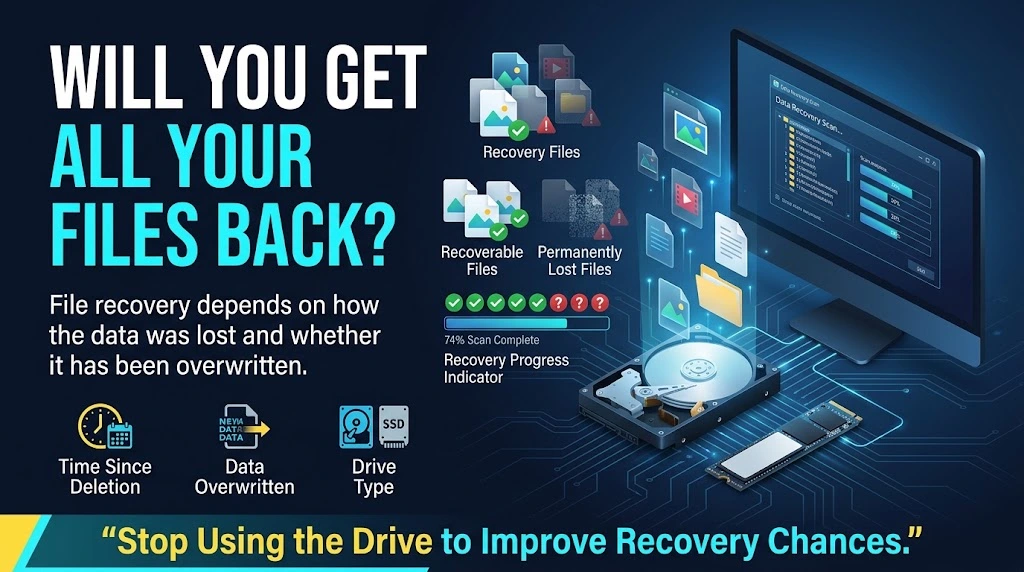
Realistic Expectations: Will You Get All Your Files Back?
Before wrapping up, it is crucial to keep your expectations realistic when dealing with data loss. It is not 100% guaranteed that you will get all your data back.
The actual recovery rate depends heavily on how your files were lost:
- If you formatted a drive (like I did): Expect realistic recovery rates around 30% to 40%. Formatting overwrites file indexes and splits up data blocks. You can usually rescue your main zip files and important documents, but some data will inevitably be lost or corrupted.
- If you recently deleted a specific photo or video: Your chances are much higher! If you simply deleted a recent image or video by accident and immediately run recovery software, you will usually find and restore that file very easily.
Best Practices to Protect Your Data in the Future
While recovery software can restore lost files, maintaining consistent backup habits remains the most reliable protection against unexpected data loss.
- Follow the 3-2-1 Backup Strategy: Keep 3 copies of your important data, across 2 different storage media types (e.g., local hard drive and external SSD), with 1 copy stored offsite or in cloud storage.
- Enable Automated Windows Backups: Set up Windows File History or OneDrive folder synchronization so key documents update automatically.
- Double-Check Drive Letters Before Formatting: Before running formatting tools or disk management utilities, double-check the target drive letter to avoid accidentally wiping the wrong partition.
For more informative content vist zestwear.pk