

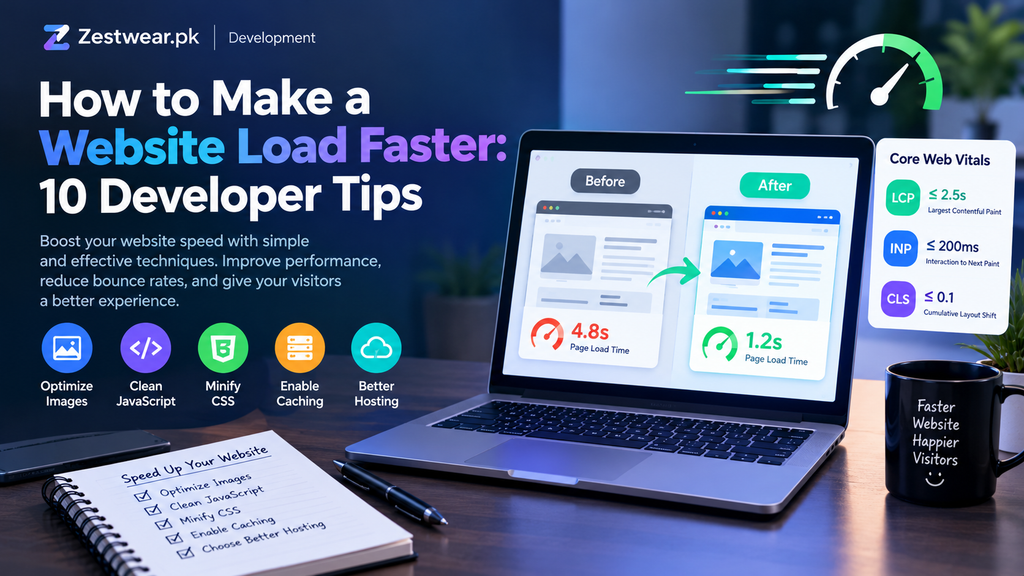
Learn how to make a website load faster with 10 practical developer tips, including image optimization, caching, CSS, JavaScript, and free testing tools.
How to Make a Website Load Faster: 10 Developer Tips
A slow website can frustrate visitors, increase the chance that they leave, and make it harder for users to interact with your content. Whether you run a blog, business website, portfolio, or online store, website speed should be an important part of your development process.
The good news is that you do not always need an expensive hosting plan or advanced coding skills to improve website performance. By optimizing images, reducing unnecessary code, improving caching, and testing your website regularly, you can identify and fix many common speed problems.
In this guide, you will learn how to make a website load faster using practical techniques suitable for beginners and experienced developers.
Quick Answer: How Can You Make a Website Load Faster?
To improve website loading speed, start by compressing large images, removing unnecessary JavaScript and CSS, enabling browser caching, using a reliable hosting provider, and reducing unnecessary redirects. Test your pages with Google PageSpeed Insights before and after making changes so you can identify which improvements actually help.
1. Test Your Website Speed First
Before changing your website, measure its current performance. Testing helps you identify the biggest problems instead of making random changes.
A useful free tool is Google PageSpeed Insights. Enter your website URL, run the test, and review the recommendations for mobile and desktop.
Pay attention to these three Core Web Vitals:
- Largest Contentful Paint (LCP): Measures how quickly the main content becomes visible. A good target is 2.5 seconds or less.
- Interaction to Next Paint (INP): Measures how quickly a page responds to user interactions. A good target is 200 milliseconds or less.
- Cumulative Layout Shift (CLS): Measures unexpected movement of page elements. A good target is 0.1 or less.
These targets apply to real-user experience, typically assessed at the 75th percentile of page visits. A single laboratory test is useful for diagnosis, but it does not tell the whole story of how every visitor experiences your website.
Record your initial results before applying any changes.
2. Optimize Images Without Losing Quality
Large image files are one common reason websites load slowly. A page containing several oversized images may take longer to load, especially on mobile devices and slower internet connections.
Here is how to optimize your images:
- Resize images to match their actual display dimensions.
- Use modern formats such as WebP or AVIF when supported by your workflow.
- Compress images before uploading them.
- Avoid uploading multiple copies of the same large image.
- Add image dimensions to reduce unexpected layout shifts.
- Use lazy loading for images that are below the initial visible area.
For example, an article thumbnail displayed at 800 pixels wide usually does not need to be uploaded as a 5,000-pixel-wide image.
For images that appear immediately at the top of the page, avoid lazy loading them if they are important to the initial view. Delaying the main hero image can make the page appear slower.
Developer example:
<img
  src="website-guide.webp"
  alt="Website performance optimization guide"
  width="800"
  height="450"
  loading="lazy"
>
This example is suitable for a below-the-fold image. For your main above-the-fold image, choose loading behavior based on its importance and test the result.
3. Remove Unnecessary JavaScript
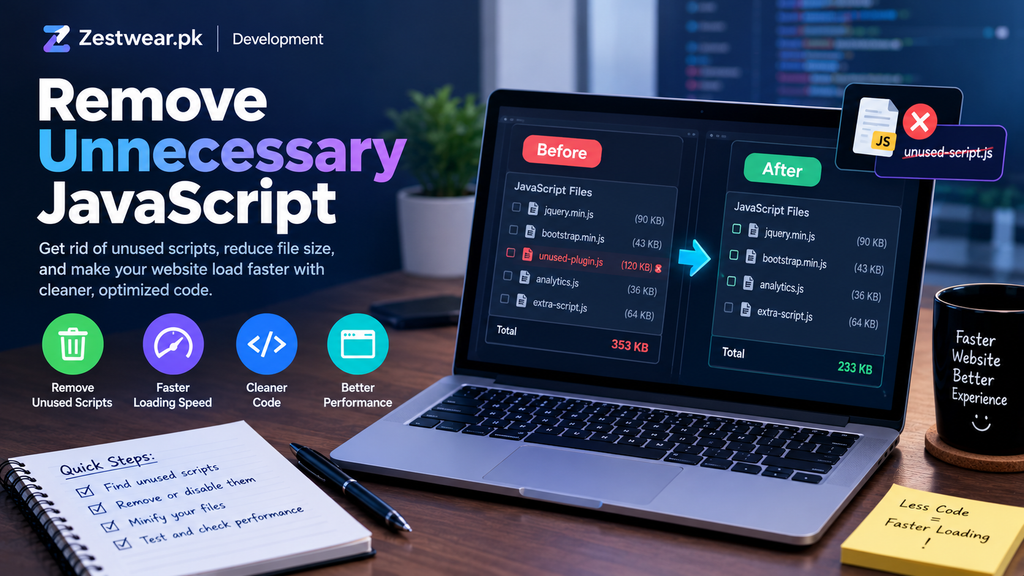
JavaScript can add interactive features to a website, but excessive or inefficient code can delay page rendering and make interactions feel slow.
Review your website for scripts that are no longer needed. These may include unused plugins, outdated tracking scripts, duplicate libraries, or features that do not contribute much to the visitor experience.
You can improve performance by:
- Removing unused JavaScript.
- Loading non-critical scripts with
deferwhen appropriate. - Avoiding unnecessary third-party widgets.
- Splitting large JavaScript bundles into smaller parts when suitable.
- Reducing long-running tasks that block the main thread.
For example:
<script src="app.js" defer></script>The defer attribute allows a classic external script to download while the HTML is being parsed and runs it after parsing is complete. It is not a universal fix for every script, so check dependencies and test the page after changing script loading behavior.
If you use WordPress, review your active plugins before installing performance plugins. Adding more plugins without understanding the problem can sometimes increase page weight instead of reducing it.
4. Minify and Clean Up CSS
CSS controls the appearance and layout of your website. Large stylesheets, unused rules, and unnecessary effects can add work for the browser.
To optimize CSS:
- Remove styles that are no longer used.
- Minify CSS files to remove unnecessary whitespace and comments.
- Avoid loading multiple stylesheets that contain duplicate rules.
- Simplify complex animations and expensive visual effects where needed.
- Load critical styling efficiently so important content can appear sooner.
Minification can reduce file size, but it will not automatically fix every rendering problem. A very large stylesheet may still be slow even after minification.
If you use a theme or website builder, be careful when editing theme files directly. A theme update may overwrite your changes. Use the supported customization method for your platform and keep a backup before making significant changes.
5. Enable Browser Caching
Browser caching allows a visitor’s browser to reuse certain resources, such as images, stylesheets, and JavaScript files, instead of downloading them again on every visit.
This can make repeat visits faster and reduce unnecessary requests to your server.
For static resources, developers can configure suitable HTTP cache headers such as Cache-Control. The correct duration depends on how often the resource changes.
For example, a versioned stylesheet might use a long cache lifetime because its URL changes when its contents are updated. Frequently updated content needs a different strategy.
If you use WordPress, your hosting control panel or a compatible caching plugin may provide caching options. Check your host’s documentation and avoid enabling multiple overlapping caching systems without understanding how they work together.
Important: Caching does not automatically fix slow server responses or oversized files. Measure your results after enabling it.
6. Choose Reliable Hosting
Your website’s server affects how quickly it can deliver the initial HTML and other resources to visitors.
If your server takes too long to respond, front-end improvements alone may not solve the problem.
When evaluating hosting, consider:
- Server response time and reliability.
- Resources available to your website.
- Traffic limits and scaling options.
- Server location relative to your audience.
- Support for caching and modern protocols.
- The quality of technical support.
A basic hosting plan can be sufficient for a small website, depending on its traffic and workload. However, if performance remains poor after you optimize the page, investigate server response times and resource usage before deciding whether to upgrade.
Do not pay for a more expensive plan without first checking where the bottleneck is.
7. Use a Content Delivery Network When Appropriate
A Content Delivery Network (CDN) distributes or caches eligible resources across multiple servers. Visitors can often download cached files from a location closer to them.
A CDN may help websites that serve visitors across different regions or deliver many static assets, such as images, CSS, and JavaScript.
However, a CDN is not automatically necessary for every small website. Its benefits depend on your hosting setup, audience, caching rules, and the type of content you deliver.
Before choosing a service, check which resources it will cache, whether dynamic pages are supported, and how cache updates work.
If most of your visitors are in one country, choose a setup that performs well for that audience rather than selecting a service based only on its popularity.
8. Reduce Unnecessary HTTP Requests
Every request for a resource can add overhead. A page that loads many images, scripts, fonts, and third-party widgets may be slower than a simpler page.
Review your page and remove resources that do not provide enough value.
You can:
- Remove unused plugins and widgets.
- Avoid loading the same library multiple times.
- Use appropriately sized images.
- Reduce unnecessary font families and font weights.
- Replace heavy decorative elements with simpler alternatives.
- Load below-the-fold content only when needed.
Modern browsers can handle multiple requests efficiently, so combining every CSS or JavaScript file into one large file is not always the best approach. Focus on reducing unnecessary work and measuring the result.
9. Make Your Website Faster on Mobile
A website may appear fast on a powerful desktop computer but feel slow on a mobile phone. Mobile users can have less processing power, limited memory, and slower or less reliable connections.
Test your website on mobile as well as desktop.
Useful improvements include:
- Using responsive images.
- Keeping navigation simple.
- Avoiding oversized hero sections.
- Reducing intrusive pop-ups and animations.
- Ensuring buttons respond quickly.
- Reserving space for images and advertisements to prevent layout shifts.
- Avoiding unnecessary scripts that run before visitors can interact with the page.
Do not judge mobile performance only by how quickly the page looks on your own phone over Wi-Fi. Use testing tools and, when available, real-user data to understand the broader experience.
10. Monitor Performance After Every Major Change
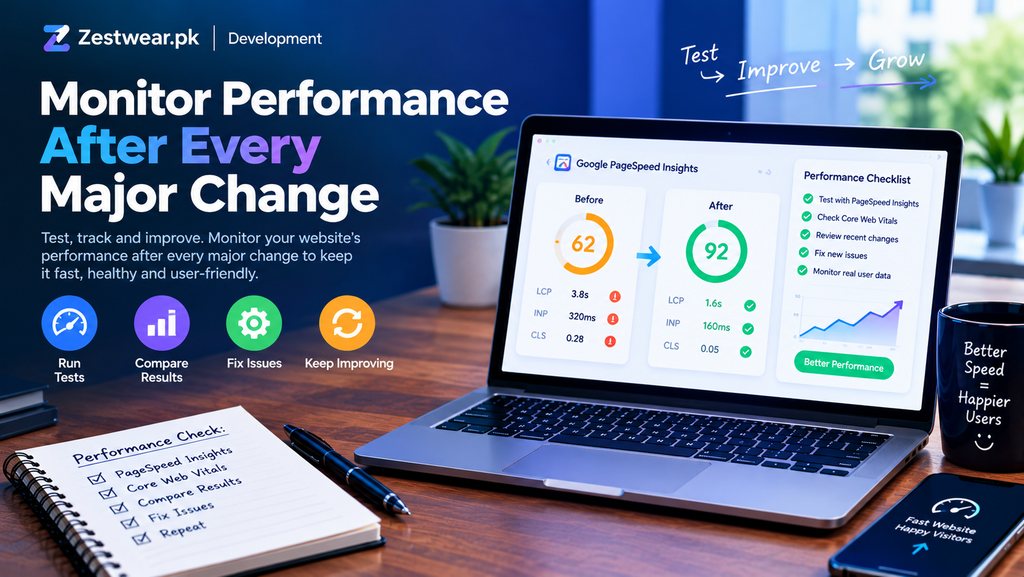
Website speed optimization is an ongoing process. A new theme, plugin, advertisement, image, or feature can affect performance even after a successful optimization.
Use the following workflow:
- Test the page before making changes.
- Identify the largest or most important performance issue.
- Make one meaningful change at a time.
- Run the test again under similar conditions.
- Compare the results and confirm the page still works correctly.
- Monitor real-user performance when enough data is available.
Useful free resources include:
- Google PageSpeed Insights — performance testing and recommendations.
- web.dev Performance — learning resources for web performance.
- Chrome DevTools — browser tools for investigating network, rendering, and JavaScript problems.
Avoid chasing a perfect score at the expense of usability. A performance score is a diagnostic signal, not a guarantee of search rankings or business results.
Common Website Speed Mistakes to Avoid
Some attempted fixes can create new problems. Avoid these common mistakes:
- Compressing images without checking quality: Excessive compression can make images blurry.
- Lazy-loading every image: Delaying the main visible image can hurt perceived loading speed.
- Installing too many optimization plugins: Overlapping features can cause conflicts.
- Deleting code without testing: Removing scripts or styles can break important features.
- Enabling aggressive caching without checking updates: Visitors may see outdated content.
- Focusing only on desktop scores: Mobile users may have a very different experience.
- Assuming a high score guarantees SEO success: Search performance depends on many factors beyond speed.
Make backups before significant changes, particularly on a live website.
Frequently Asked Questions
How can I make my website load faster for free?
Start by testing your site with PageSpeed Insights. Compress and resize images, remove unused plugins and scripts, optimize CSS, and enable appropriate caching. Many of these improvements can be made without paying for additional services.
Does website speed affect SEO?
Website performance contributes to user experience, and Core Web Vitals are used by Google among its page experience signals. However, good scores do not guarantee higher rankings. Relevant content, usefulness, accessibility, and other factors also matter.
What is a good website loading time?
There is no single loading-time number that describes every part of the user experience. For Core Web Vitals, aim for an LCP of 2.5 seconds or less, an INP of 200 milliseconds or less, and a CLS of 0.1 or less, measured at the 75th percentile of visits.
Do I need a CDN for a small website?
Not necessarily. A small site may perform well with suitable hosting, optimized assets, and caching. A CDN becomes worth evaluating when it addresses a real delivery or caching problem.
Why is my website still slow after optimization?
Possible causes include slow server responses, heavy third-party scripts, render-blocking resources, large images, inefficient JavaScript, or a page builder that loads unnecessary assets. Use a performance report and browser developer tools to investigate the specific bottleneck.
More Resources to Improve Your Website
Improving website speed is just one part of building a successful website. You should also focus on responsive design, clean code, and useful SEO practices to create a better experience for visitors. If you are new to web development, explore our guides on [free SEO tools] to improve your website. You can also learn [how to find low-competition keywords] to plan content that matches what your audience is searching for.
Conclusion
Learning how to make a website load faster starts with measurement, not guesswork. Optimize images, reduce unnecessary JavaScript and CSS, configure caching carefully, choose suitable hosting, and test your pages on both mobile and desktop.
You do not need to apply every technique at once. Start with the largest issues reported by your testing tools, make changes carefully, and measure the results.
A faster website can provide a smoother experience for visitors and make your website easier to use. Consistent monitoring will help you maintain that experience as your website grows.
Recommended next step: Run your most important page through Google PageSpeed Insights and use the report to decide which improvement to tackle first.