
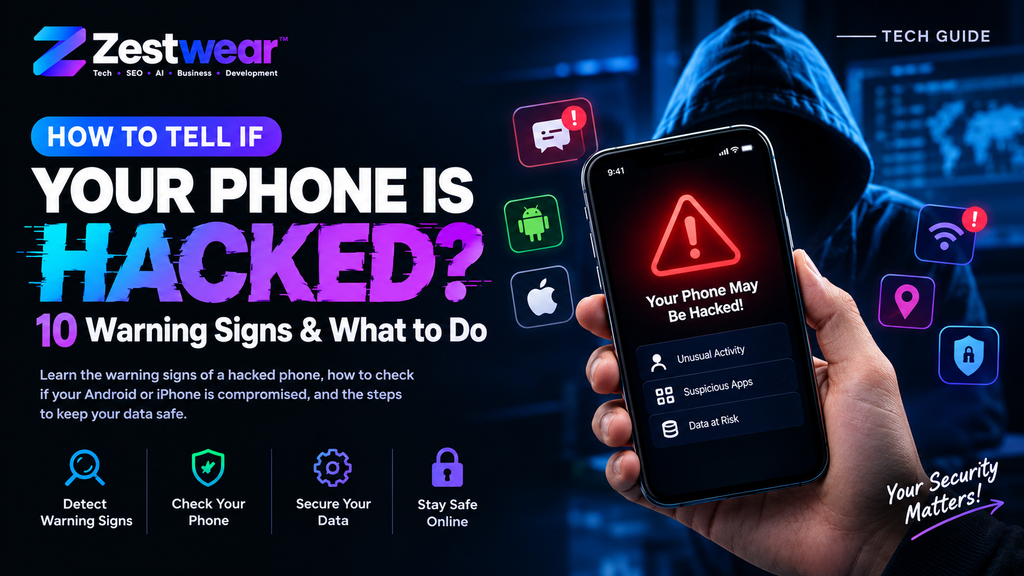
How to tell if your phone is hacked? Learn 10 warning signs, how to check for malware and spyware, and what to do to protect your phone, data, and accounts
Introduction
How to tell if your phone is hacked is a question many smartphone users ask when their device suddenly starts behaving strangely. A phone that becomes unusually slow, loses battery quickly, shows unfamiliar apps, displays unexpected pop-ups, or has suspicious account activity may need a security check. However, these signs do not always mean your phone has been hacked, as software problems, outdated apps, or normal device issues can cause similar symptoms.
In this guide, we’ll explain the 10 common warning signs of a hacked phone, how to check your Android or iPhone for suspicious activity, malware, or unauthorized access, and what steps you can take to secure your phone, protect your personal data, and keep your online accounts safe.
Whether you’re concerned about phone hacking, spyware, malware, or smartphone security, this guide will help you understand what to look for and what to do next.
Your smartphone is no longer just a device for calls and messages. It may contain your photos, private conversations, passwords, emails, banking information, social media accounts and other sensitive data.
That makes one question especially important:
How can you tell if your phone has been hacked?
A slow phone or a battery that suddenly drains does not automatically mean your phone has been hacked. However, a combination of unusual behavior, unfamiliar apps, unexpected account activity or suspicious security changes deserves attention.
In this guide, you’ll learn 10 possible warning signs of a compromised phone, how to investigate them, and what to do if you discover something suspicious.
10 Signs Your Phone May Be Hacked
1. Your Phone Suddenly Becomes Very Slow
If your phone becomes unusually slow without an obvious reason, investigate what’s running on the device.
You may notice:
- Apps taking unusually long to open
- Random freezing
- Unexpected crashes
- Slow performance even when you’re not using demanding apps
- The device behaving differently after installing an unfamiliar application
However, slow performance alone does not prove hacking. Storage problems, aging hardware, software bugs and normal background processes can also cause similar symptoms.
Google lists unusual slowness and improper device behavior among possible signs of unwanted or malicious software on Android.
What to do
Check your installed apps and remove applications you don’t recognize or no longer trust.
2. Your Battery Is Draining Much Faster Than Normal
A sudden change in battery life can be worth investigating.
For example, your phone may:
- Lose battery unusually quickly
- Become warm while doing very little
- Consume power while sitting idle
- Show significantly different battery usage from your normal pattern
But don’t immediately assume “my phone is hacked.”
Battery degradation, high screen brightness, GPS, background apps, poor signal and software updates can also increase battery consumption.
What to do
Open your phone’s battery settings and check which apps are consuming the most power.
If you find an unfamiliar app using significant resources, investigate it before allowing it to continue running.
3. You See Apps You Don’t Remember Installing
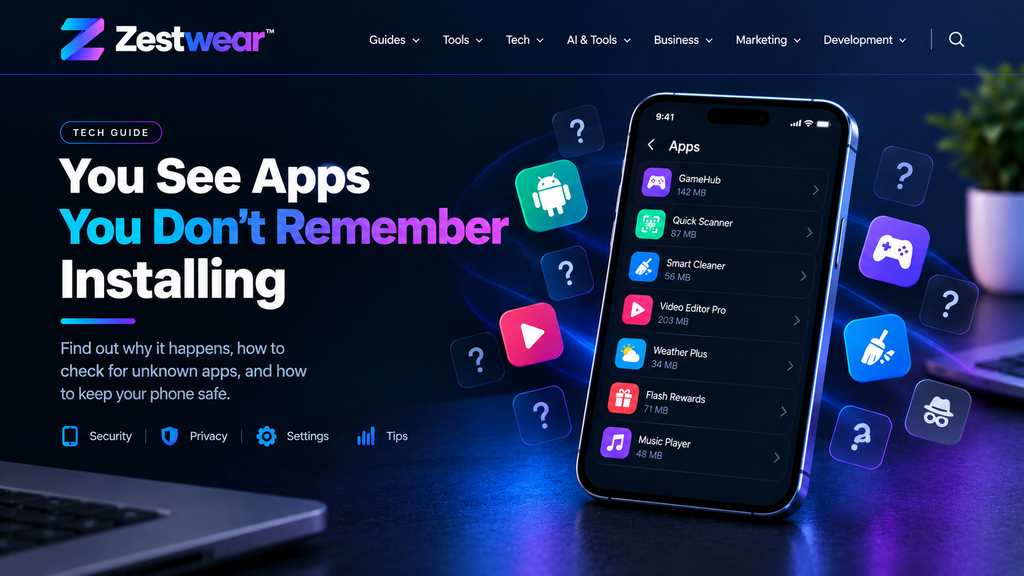
This is one of the signs that deserves closer attention.
Look through your installed applications and ask:
“Do I recognize every app on this phone?”
Be particularly careful with applications that:
- You don’t remember installing
- Have suspicious names
- Request excessive permissions
- Came from an unknown source
- You don’t actually use
Google recommends removing apps that you don’t need, don’t trust or didn’t obtain from a trusted source.
Quick check
Android:
Settings → Apps → See all apps
iPhone:
Settings → General → iPhone Storage
The exact menu names can vary by device and operating-system version.
4. Strange Pop-Ups or Unwanted Ads Keep Appearing
Unexpected pop-ups are another warning sign.
You might see:
- Fake virus warnings
- Constant pop-up advertisements
- New browser tabs opening unexpectedly
- Redirects to unfamiliar websites
- Strange notifications
Google identifies persistent pop-ups, unwanted redirects and other browser changes as possible signs of unwanted software on Android.
⚠️ Never click a random “Your phone is infected” popup
Some fake security warnings are designed to make you panic and install malicious software.
Instead, close the page and investigate the problem through your phone’s normal security settings.
5. Your Accounts Show Logins You Don’t Recognize
This can be more important than a slow phone.
Check your:
- Google Account
- Apple Account
- Banking and shopping accounts
Look for unfamiliar devices, login alerts or security changes.
Google specifically recommends reviewing recent security activity and checking the devices connected to your Google Account when suspicious activity appears.
If you find an unknown device
Don’t ignore it.
Secure the account, change the password and remove unfamiliar sessions or devices where appropriate.
6. Your Password or Recovery Information Changes Without You
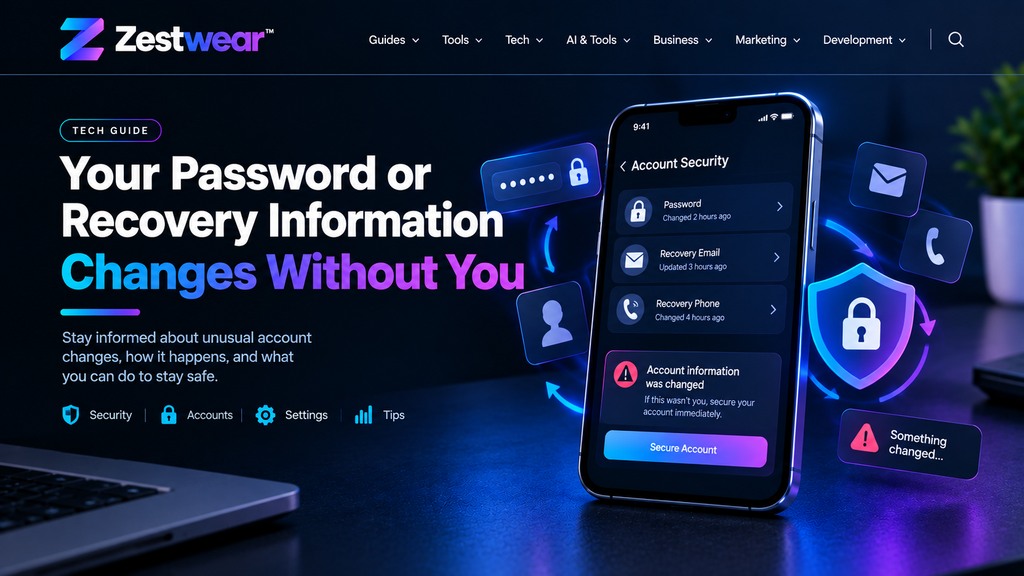
This is a major warning sign.
For example, you receive a notification saying:
Your password was changed.
But you didn’t change it.
Or you discover that:
- Your recovery email changed
- Your recovery phone number changed
- Your username was modified
- Security settings changed
- Someone attempted to reset your password
The FTC lists unexpected password or account-information changes as signs that an account may have been compromised.
What to do immediately
Use the official account recovery page for the affected service rather than clicking suspicious links in messages.
7. Your Phone Is Using Unusual Amounts of Mobile Data
Unexpected data usage can sometimes indicate that an app is communicating in the background.
Check your mobile-data usage and look for applications consuming significantly more data than expected.
But again, high data usage does not automatically mean hacking.
Video streaming, cloud backups, social media and automatic updates can also consume large amounts of data.
What to check
Look for:
Settings → Mobile Data / Data Usage → App Usage
Then investigate apps with unusual activity.
8. Messages or Emails Are Being Sent Without You
Imagine your friend tells you:
“Why did you send me that strange link?”
But you never sent it.
That’s something you should investigate.
Possible signs include:
- Messages you didn’t send
- Emails you didn’t write
- Social media posts you didn’t publish
- Friends receiving suspicious links from your account
Malware and compromised accounts can be involved in this type of activity.
What to do
Change the affected account password, sign out of other sessions and enable two-factor authentication.
The FTC recommends these steps when an account may have been compromised.
9. Your Phone’s Settings Change Without Your Permission
Pay attention to unexpected changes in security-related settings.
For example:
- An unfamiliar device appears in your account
- Recovery information changes
- Unknown apps gain permissions
- Security settings are modified
- An unfamiliar VPN or configuration profile appears
- Browser settings change unexpectedly
One unusual setting doesn’t necessarily mean your phone was hacked, but multiple unexplained changes should be investigated.
10. You Receive an Unexpected Security Alert
Sometimes your phone or online account can tell you something is wrong before you notice it yourself.
Google may send alerts when it detects events such as:
- Sign-in from a new device
- Suspicious activity
- Sensitive security changes
Google recommends reviewing the alert details and securing the account if the activity wasn’t yours.
Golden rule:
Never ignore a security alert you don’t recognize.
But also don’t blindly trust a message claiming to be from Google, Apple or your bank. Open the official app or website yourself instead of using a suspicious link.
How to Check If Your Phone Is Actually Hacked
Seeing one symptom doesn’t mean your phone has been hacked.
Use this 5-step phone security check.
Step 1: Check Installed Apps
Remove applications you don’t recognize or no longer trust.
Step 2: Check Account Devices
Review devices connected to your Google or Apple account.
Look for devices you don’t recognize.
Step 3: Check Security Activity
Review recent login and security events.
Google provides a Security Checkup and device-management tools for this purpose.
Step 4: Update Your Phone
Install available operating-system and application updates.
Security updates can include important protections against known threats.
Step 5: Review Your Permissions
Check which apps can access:
- Camera
- Microphone
- Location
- Contacts
- Photos
- Files
- SMS
If an app has permissions it doesn’t reasonably need, investigate it.
What to Do If Your Phone Has Been Hacked
If you’ve found convincing evidence of unauthorized access, act quickly.
1. Disconnect Suspicious Apps
Remove unfamiliar or malicious applications.
2. Change Important Passwords
Start with your primary email or Google/Apple account.
Then change passwords for important accounts that may have been exposed.
Avoid reusing the same password across multiple accounts.
3. Turn On Two-Factor Authentication
Two-factor authentication adds another layer of protection beyond your password. The FTC recommends enabling it where available; authenticator apps or security keys can provide stronger protection than SMS-based codes in some situations.
4. Sign Out of Unfamiliar Devices
Remove devices and sessions you don’t recognize.
5. Update Your Phone
Install the latest available security updates.
6. Scan for Malware
Use the security tools available for your device and investigate suspicious applications.
Google provides specific guidance for detecting and removing unsafe software from Android devices.
7. Consider a Factory Reset
If serious problems continue after removing suspicious apps and securing your accounts, a factory reset may be appropriate.
Back up important data first, and make sure you understand what will be erased.
How to Prevent Your Phone From Being Hacked
You don’t need to be a cybersecurity expert to improve your phone security.
Follow these basic habits:
🔐 Use a Strong Screen Lock
Use a strong PIN, password or supported biometric authentication.
🔄 Keep Software Updated
Don’t repeatedly postpone security updates.
📱 Install Apps Carefully
Download applications from trusted sources and review their permissions.
🔑 Use Unique Passwords
Don’t use the same password everywhere.
🛡️ Enable 2FA
Protect important accounts with multi-factor authentication.
🚫 Avoid Suspicious Links
Don’t click unexpected links asking for passwords, payments or verification.
☁️ Keep Backups
Regular backups can make recovery much easier if something goes wrong.
The FTC similarly recommends device locking, software updates and regular backups as basic phone-security practices.
Android vs iPhone: Is One Easier to Hack?
There’s no simple answer that one platform is “unhackable.”
Security depends on:
- Your operating-system version
- App sources
- Account security
- Password practices
- Software updates
- Device settings
- What links and files you interact with
The most important thing is not to assume that iPhone or Android automatically means you’re completely safe.
The Biggest Mistake People Make
The biggest mistake is waiting until something serious happens.
If you see one unusual symptom, investigate it.
If you see multiple unexplained signs together—such as an unfamiliar app, suspicious account login, unexpected messages and security changes—take the situation more seriously and secure your accounts immediately.
A single symptom isn’t proof of hacking. Patterns of unexplained activity are much more useful evidence.
Final Checklist: Is Your Phone Safe?
Before you finish, ask yourself:
- Do I recognize every installed app?
- Do I recognize all devices connected to my accounts?
- Have my passwords changed unexpectedly?
- Have my recovery details changed?
- Am I receiving strange security alerts?
- Are messages being sent without me?
- Are there unusual pop-ups or redirects?
- Is an app using unusual amounts of battery or data?
- Is my phone running the latest available software?
- Is two-factor authentication enabled on important accounts?
If everything looks normal, that’s a good sign—but no checklist can guarantee that a phone has never been compromised.
Looking for more practical technology guides and useful digital resources? Explore Zestwear for more guides covering technology, AI, SEO, business, and web development.