
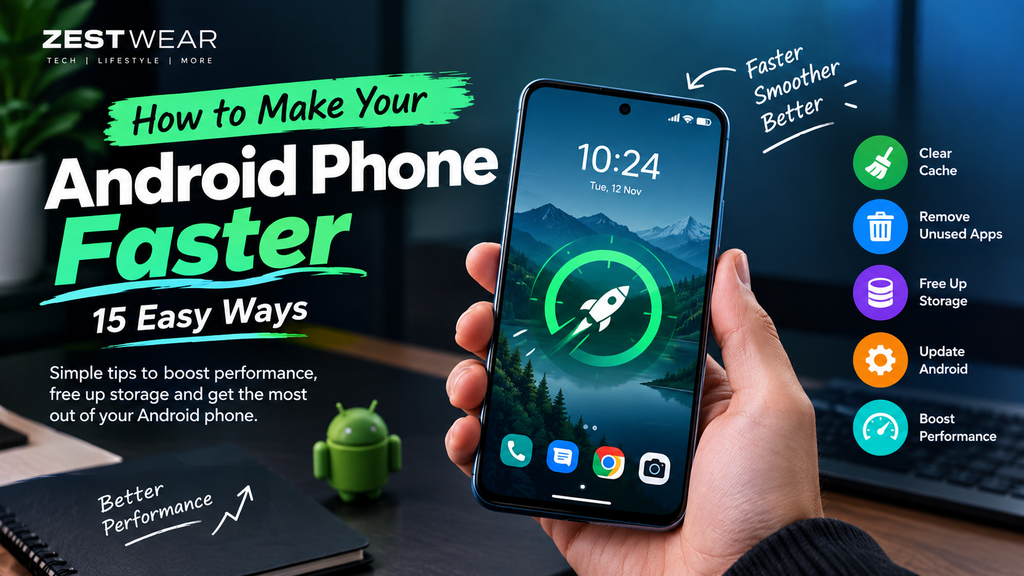
How to Make Your Android Phone Faster: 15 Easy Ways
Is your Android phone running slow, taking too long to open apps, or freezing when you try to multitask? You do not always need a new smartphone to improve performance.
Over time, Android phones can become slower because of low storage, too many unused apps, background processes, outdated software, large files, and demanding applications.
The good news is that you can often improve your phone’s performance with a few simple changes.
In this guide, you will learn how to make your Android phone faster using practical methods that are easy to follow, even if you are not a technical user.
Quick answer: To speed up an Android phone, free up storage, uninstall unused apps, restart the phone, update Android and apps, reduce unnecessary background activity, clear app cache when appropriate, and avoid suspicious or resource-heavy apps.
Why Is My Android Phone So Slow?
Before trying different solutions, it helps to understand why an Android phone may become slower.
Common causes include:
- Low available storage
- Too many installed apps
- Apps running in the background
- Outdated Android software
- Outdated applications
- Large numbers of photos and videos
- Too many browser tabs
- Battery or performance-intensive apps
- Unnecessary widgets and animations
- Overheating
- Suspicious or malicious applications
- Older hardware
A slow phone does not automatically mean that your device has been hacked or infected with malware. Performance problems can have many ordinary causes.
15 Ways to Make Your Android Phone Faster
1. Restart Your Android Phone
One of the easiest ways to improve temporary performance problems is to restart your phone.
Restarting can close processes that have been running for a long time and give the operating system a fresh start.
If your phone has suddenly become slow, try this first.
How to restart:
- Press and hold the power button.
- Select Restart.
- Wait for the phone to start again.
- Test the apps that were previously running slowly.
A restart will not permanently solve every performance problem, but it is a simple first step.
2. Free Up Storage Space
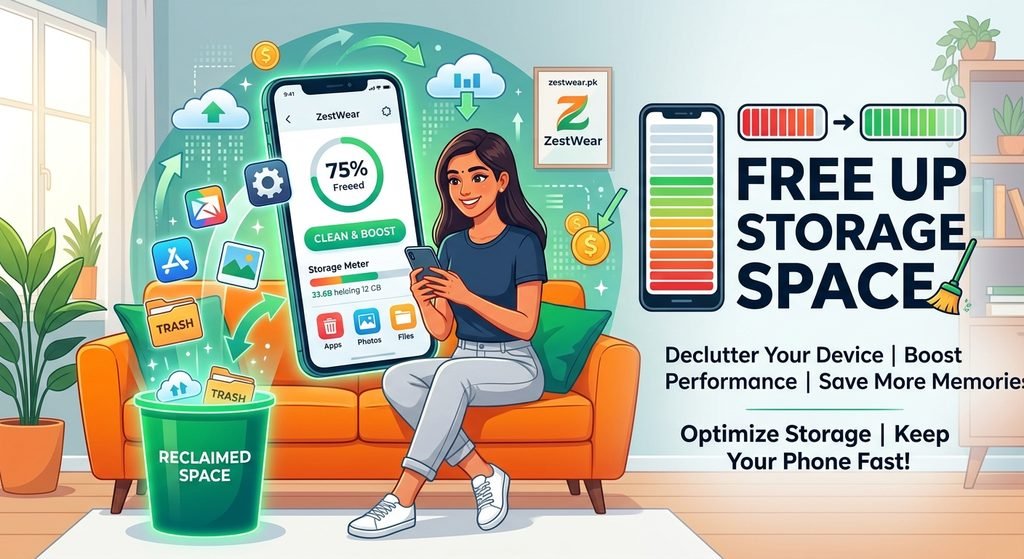
Low storage is one of the first things you should check when your Android phone becomes slow.
Google Android Help — Free up storage on your Android device
Your phone needs available storage for normal operations, app data, updates, photos, downloads, and temporary files.
Go to:
Settings → Storage
The exact menu can vary depending on your Android phone manufacturer.
Look for files you no longer need, such as:
- Old videos
- Duplicate photos
- Downloaded movies
- Large documents
- Old APK files
- Unused downloads
- Offline content
- Unused applications
If your storage is almost full, removing unnecessary files can give you more working space.
Tip:
Back up important photos, videos, and documents before deleting them.
3. Uninstall Apps You Don’t Use
Many people install an app and forget about it.
Unused apps take up storage and some may continue performing background tasks.
Review your installed applications and remove apps you no longer need.
Go to:
Settings → Apps → See all apps
The exact wording depends on your Android device.
Remove applications that you no longer use, especially large games and apps that consume significant storage.
Don’t uninstall system applications unless you know what they do.
4. Update Your Android Software
Software updates can include bug fixes, security improvements, compatibility changes, and performance-related improvements.
Check whether your phone has an available system update.
Usually:
Settings → System → Software update
On some phones, the option may be located under About phone or another system menu.
If an update is available, connect your phone to a reliable Wi-Fi network and make sure the battery has enough charge.
Important:
The available updates depend on your phone manufacturer, model, region, and software-support period.
5. Update Your Apps
Your Android operating system is not the only software that needs updating.
Old versions of apps can sometimes cause crashes, bugs, compatibility problems, or unnecessary performance issues.
Open the Google Play Store, tap your profile picture, and check for available app updates.
You can update important applications individually or use the available update-all option.
Keeping regularly used apps updated can help maintain compatibility with newer Android software.
6. Clear App Cache
If a particular application is behaving strangely or becoming unusually slow, clearing its cache may help.
A cache contains temporary files that an app stores to make certain tasks faster.
To clear an app’s cache, the process is generally:
Settings → Apps → Select the app → Storage → Clear cache
The exact steps can vary by manufacturer.
Clear Cache vs Clear Storage
Be careful when selecting these options.
Clear cache removes temporary cached data.
Clear storage/data can remove the application’s locally stored information and may require you to sign in again.
Therefore, don’t use Clear storage/data unless you understand what information the app stores locally.
7. Remove Unnecessary Widgets
Widgets can be useful because they provide information directly on your home screen.
However, having many unnecessary widgets can add extra background activity.
Look at your home screen and remove widgets you rarely use.
To remove one, press and hold the widget and select the appropriate remove option.
You do not need to remove every widget. Focus on those that you do not actually use.
8. Reduce Unnecessary Animations
Android uses animations to make the interface feel smoother.
On some devices, reducing certain animations can make the interface feel more responsive.
Android also provides Developer options, which contain animation settings on supported devices.
However, Developer options are intended for advanced users.
If you do not know what a particular developer setting does, don’t change it.
For beginners, it is better to start with storage cleanup, app management, updates, and restarting the phone.
9. Close or Remove Resource-Heavy Apps
Some applications and games require significantly more processing power, memory, storage, or battery than others.
If your phone becomes slow whenever a particular app is running, check whether that application is responsible.
You can try:
- Updating the app
- Restarting the phone
- Clearing its cache
- Removing unnecessary downloaded content
- Using a lighter alternative
- Uninstalling the app if you no longer need it
Avoid keeping demanding applications open unnecessarily on older or lower-powered devices.
10. Delete Large Downloads and Unnecessary Files
Your Downloads folder can become surprisingly large.
Open your phone’s file manager and check for large files.
Look for:
- Old PDFs
- Videos
- ZIP files
- APK files
- Images
- Screen recordings
- Shared documents
- Duplicate downloads
Sort files by size if your file manager provides that option.
This is particularly useful when your phone is running low on storage.
11. Keep Your Phone Cool
Heat can affect smartphone performance.
When a phone becomes hot, the system may reduce performance to manage the temperature.
Your phone may become hot when you:
- Play demanding games for long periods
- Use navigation continuously
- Record high-resolution video
- Use the camera for extended periods
- Charge while performing demanding tasks
- Use the phone in very hot environments
If your phone becomes unusually hot, stop demanding activities and allow it to cool naturally.
Do not put a hot phone in a freezer or use extreme cooling methods.
12. Check Battery and Background Activity
Some apps can use significant battery and background resources.
Go to your phone’s battery settings and review which applications are consuming the most power.
If an app you rarely use consistently consumes substantial battery, investigate its settings or consider uninstalling it.
Android manufacturers may provide different options for managing background activity, so the exact controls vary by device.
13. Remove Suspicious Applications
If your Android phone suddenly becomes extremely slow after installing an unfamiliar application, investigate that app.
Warning signs can include:
- Unexpected pop-ups
- Excessive battery drain
- Unusual data usage
- Unknown applications
- Browser redirects
- Unwanted notifications
- Strange permissions
Only install applications from trustworthy sources whenever possible.
You can also use Google’s built-in security features and review application permissions.
If you suspect your phone has been compromised, don’t simply install random “phone booster” applications. Investigate the cause first.
For a related security guide, see our article on How to Tell If Your Phone Is Hacked.
14. Avoid “RAM Booster” and “Phone Cleaner” Apps
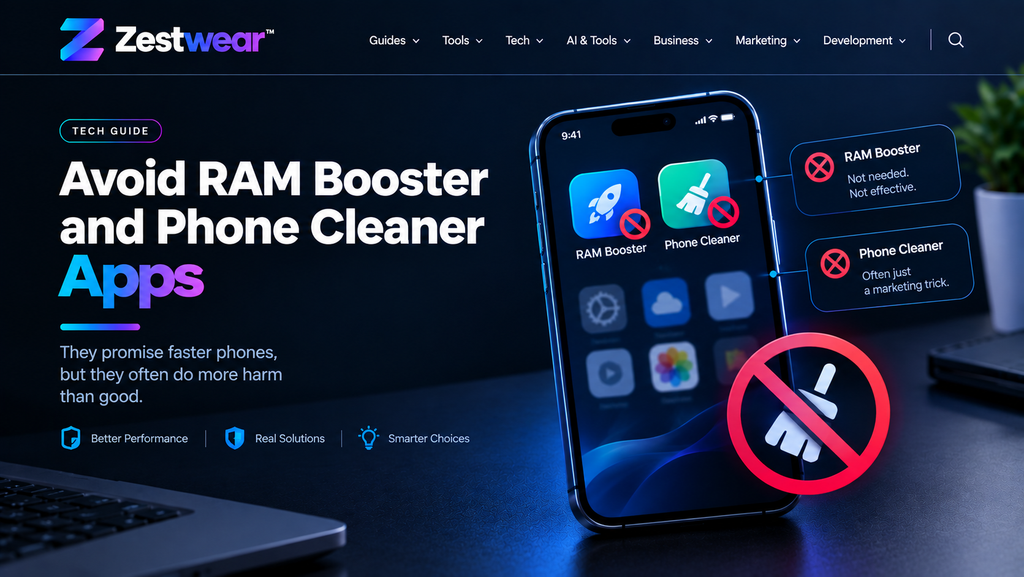
You may see applications promising to make your Android phone dramatically faster with one tap.
Be cautious.
Android already manages memory and background processes automatically. Installing another application to constantly “boost RAM” may not provide the improvement you expect and can add another process to your phone.
Instead, focus on practical steps:
- Remove unused apps
- Free storage
- Update software
- Restart your phone
- Review background activity
- Keep your device cool
- Remove suspicious applications
These steps address common causes of slow smartphone performance directly.
15. Factory Reset as a Last Resort
If your Android phone remains extremely slow after trying the previous methods, a factory reset may be considered.
A factory reset removes your personal data and returns the device to its initial software state.
Back up your important information before doing this.
Back up things such as:
- Photos
- Videos
- Contacts
- Documents
- WhatsApp data where applicable
- Important files
- Authentication or recovery information
A factory reset should not be your first solution.
If the phone has serious hardware problems, a reset may not solve the underlying issue.
How to Make an Old Android Phone Faster
If you have an older Android phone, you can still improve the experience by keeping things simple.
Try these steps:
- Keep enough free storage available.
- Uninstall applications you don’t use.
- Avoid running demanding games for long periods.
- Keep Android and important apps updated when updates are available.
- Reduce unnecessary widgets.
- Remove large files you no longer need.
- Avoid suspicious cleaner or booster apps.
- Restart the phone occasionally.
- Keep the device cool.
- Consider a factory reset only after backing up your data.
However, software optimization cannot completely overcome hardware limitations.
An older phone with limited RAM or an aging processor may still perform more slowly than a newer device.
Does Freeing Storage Make Android Faster?
It can help, especially when storage is very low.
Freeing storage gives your phone more room for normal operations, temporary files, app updates, and other data.
However, deleting files will not magically turn an old phone into a new one.
The biggest improvements usually come from addressing the actual cause of the slowdown.
Does Clearing Cache Make Android Faster?
Clearing an app’s cache can help when that particular app has accumulated problematic temporary data or is behaving incorrectly.
It is not necessary to constantly clear every app’s cache.
Android applications can use cached data to load certain content more efficiently, so cache management should be used as a troubleshooting step rather than a daily routine.
What If My Android Phone Is Still Slow?
If your phone is still slow after trying these solutions, consider whether there is another underlying problem.
Possible causes include:
- Aging hardware
- Battery-related issues
- Overheating
- A problematic application
- Software bugs
- Very limited storage
- Hardware damage
- Malware or unwanted software
If the device is experiencing repeated crashes, extreme overheating, unexpected shutdowns, or other serious problems, consider contacting the phone manufacturer’s support service or a qualified technician.
Quick Android Speed-Up Checklist
Before you finish, use this simple checklist:
☐ Restart your Android phone
☐ Check available storage
☐ Delete unnecessary files
☐ Uninstall unused apps
☐ Update Android
☐ Update important apps
☐ Clear cache for problematic apps
☐ Remove unnecessary widgets
☐ Review battery usage
☐ Check for suspicious applications
☐ Keep the phone cool
☐ Avoid unnecessary cleaner/booster apps
☐ Back up important data
☐ Consider a factory reset only as a last resort
Frequently Asked Questions
How can I make my Android phone faster?
To make your Android phone faster, start by freeing storage, uninstalling unused apps, restarting the device, updating Android and applications, reviewing background activity, and removing unnecessary files.
Why is my Android phone suddenly slow?
A sudden slowdown can be caused by a problematic application, low storage, overheating, software issues, or unusual background activity. Check what changed recently before making major changes.
Does deleting apps make Android faster?
Deleting unused apps can free storage and reduce unnecessary background activity. The effect depends on the app and the phone.
How do I free up storage on Android?
Check Settings → Storage, then remove unnecessary downloads, large videos, duplicate files, and applications you no longer use. Back up important files before deleting them.
Should I use a RAM booster on Android?
Usually, you should not install a RAM booster simply because your phone feels slow. Start with built-in Android settings and practical troubleshooting steps instead.
Will a factory reset make my Android phone faster?
A factory reset can resolve some software-related problems by returning the phone to a clean state, but it deletes personal data. Back up your information first, and remember that it will not fix hardware limitations.
Final Thoughts
Learning how to make your Android phone faster does not necessarily require expensive software or a new device.
Start with the basics: free up storage, remove unused apps, restart your phone, update Android and your applications, check background activity, and keep your device cool.
If the phone is still slow, investigate the specific application or hardware issue causing the problem instead of installing random phone-booster apps.
For more practical guides covering technology, AI, SEO, business, and web development, explore Zestwear.pk.