

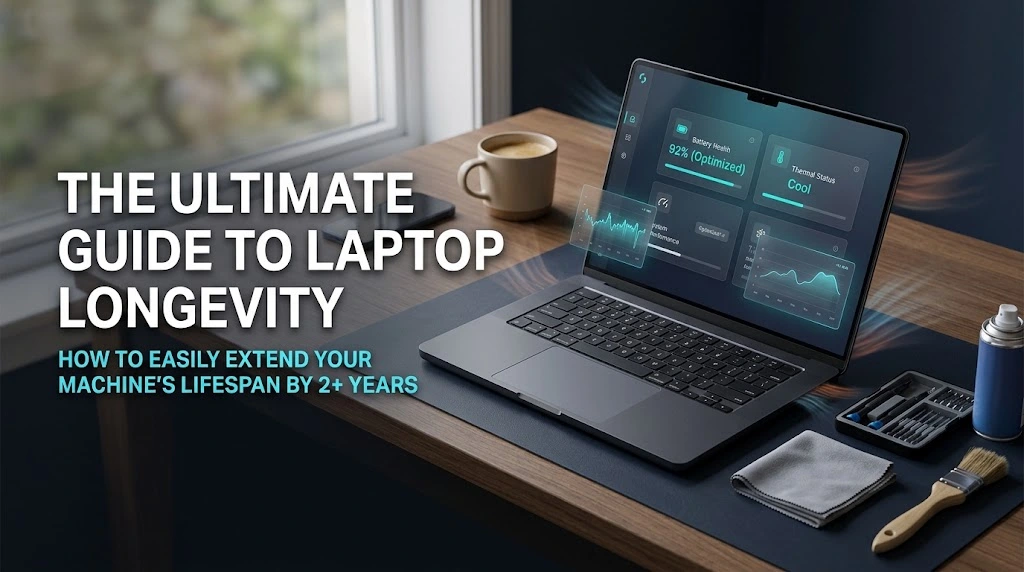
Laptops don’t usually die overnight. Instead, they suffer a slow death caused by thermal throttling, unnecessary background processes, and unmanaged battery cycles. Most people replace their machines after three years simply because they start feeling sluggish or can barely survive an hour off the charger.
The good news? With a few simple hardware habits and operating system tweaks, you can easily squeeze an extra two—or even three—years out of your current laptop without spending a fortune.
Here is the exact playbook to keep your machine running cool, fast, and reliable for the long haul.
1. Master Thermal Management (Because Heat Kills Silicon)
Heat is the single greatest enemy of electronic components. Prolonged exposure to high temperatures degrades your CPU, GPU, and lithium-ion battery.
- Clean out the cooling channels: Dust acts as a thermal blanket. Every 6 to 12 months, pop off the bottom panel (or use compressed air through the intake vents) to clear out dust build-up around the cooling fans and heatsink fins.
- Repaste the thermal compound: Factory thermal paste often dries out and loses conductivity after 2 to 3 years. Applying a fresh layer of high-quality thermal paste to your CPU and GPU can lower operating temperatures by 5°C to 15°C under load.
- Avoid soft surfaces: Operating a laptop on blankets, beds, or couches blocks the intake vents on the bottom, forcing the fans to work harder while trapping heat inside the chassis. Always use a hard, flat surface or a slight elevated stand.
When your machine starts thermal throttling or choking on memory overhead, simple tasks feel agonizingly slow. In today’s digital environment, that lost efficiency adds up quickly—whether you are working locally or managing web infrastructure where every millisecond counts. In fact, we’ve analyzed how local device latency and server load times directly hit bottom lines in our report on how site speed impacts e-commerce conversions. Luckily, fixing your laptop’s underlying hardware bottlenecks follows the exact same logical steps.
2. Protect Your Battery Health with Smart Charge Limits
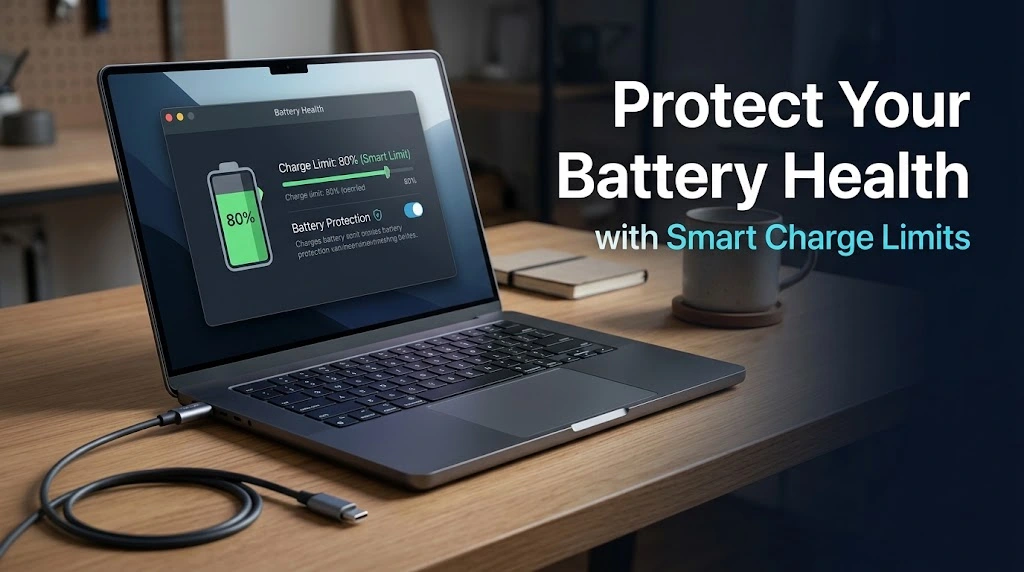
Modern lithium-ion batteries deteriorate fastest when held at 100% charge while exposed to heat, or when constantly drained to 0%.
Optimal Battery Health Zone: 20% to 80% Charge
- Set a charge ceiling: Most laptop manufacturers (ASUS, Lenovo, Dell, Apple, HP) include built-in battery management software that lets you limit charging to 80% or 60% if you spend most of your time plugged into a desk.
- Manage charge cycles: Avoid letting your battery drain completely to 0%. Shallow discharge cycles (dropping to 20% and recharging to 80%) put significantly less stress on battery chemistry than deep full-cycle drains.
- Keep it cool while charging: Charging generates ambient heat. Avoid running heavy processing tasks or gaming while charging on low battery.
3. Prune the OS: Eliminate Background Overhead
Over time, operating systems collect digital clutter that steals RAM, consumes CPU cycles, and drains battery life in the background.
- Audit startup applications: Disable non-essential apps from launching at boot. On Windows, check Task Manager > Startup Apps; on macOS, review System Settings > General > Login Items.
- Prune unused background services: Apps like bloatware updaters, cloud sync tools, and telemetry services quietly consume background system resources. Periodically uninstall software you haven’t used in the past 90 days.
- Maintain free disk space: Solid State Drives (SSDs) require free space to perform wear leveling and background garbage collection efficiently. Keep at least 15% to 20% of your primary drive free to maintain peak read/write performance.
For detailed technical documentation on database structure, disk cleanup, and system storage maintenance, check out the official guides at Official OS maintenance guides
4. Hardware Upgrades: Reclaim Speed Without Buying New
Before writing off a slow machine, check if key components are modular and upgradeable.
| Component | Common Bottleneck | Upgrade Impact |
| RAM (Memory) | Single-channel configuration or low capacity (8GB) | Adding a second stick enables dual-channel bandwidth and eliminates multitasking stutters. |
| Storage (SSD) | Aging SATA SSD or small NVMe capacity | Upgrading to a larger, faster NVMe drive restores write speeds and provides breathing room. |
| Wi-Fi Card | Older Wi-Fi 5 (802.11ac) module | Swapping in a Wi-Fi 6E/7 card improves connection stability and network throughput. |
5. Physical Care & Power Delivery Hygiene

Hardware failures often stem from small, preventable physical habits.
- Open the lid from the center: Opening a laptop screen from one corner applies uneven torque across the hinge mounts, leading to cracked display housings or broken hinges over time.
- Use quality chargers: Low-quality third-party power adapters can deliver unstable voltages, causing ripple damage to internal power delivery VRMs (Voltage Regulator Modules).
- Transport with care: Always place your laptop in a padded sleeve and make sure the machine is fully powered down (or in deep sleep) before stowing it in a bag to prevent overheating inside an enclosed space.
Final Thoughts
At the end of the day, extending your laptop’s lifespan isn’t about performing complex technical wizardry—it’s about building consistent maintenance habits. Taking twenty minutes twice a year to clear out dust, managing your background clutter, and giving your battery room to breathe can make the difference between a machine that bogs down at year three and one that runs smoothly past year five.
Before you spend $1,000+ on a brand-new laptop, run through this checklist. You might be surprised at just how fast—and capable—your current machine still is.