
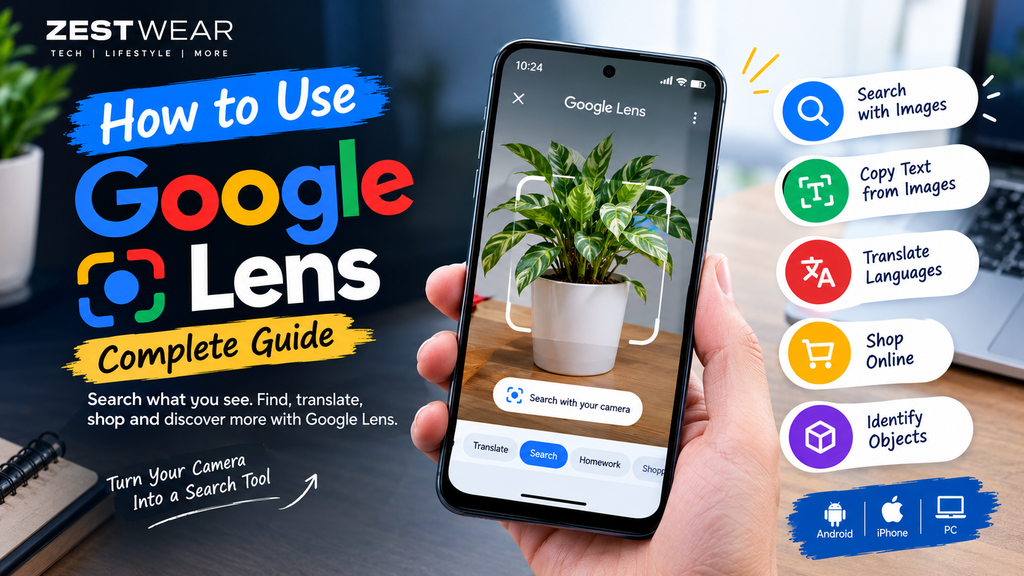
How to Use Google Lens: Complete Guide for Android, iPhone & PC
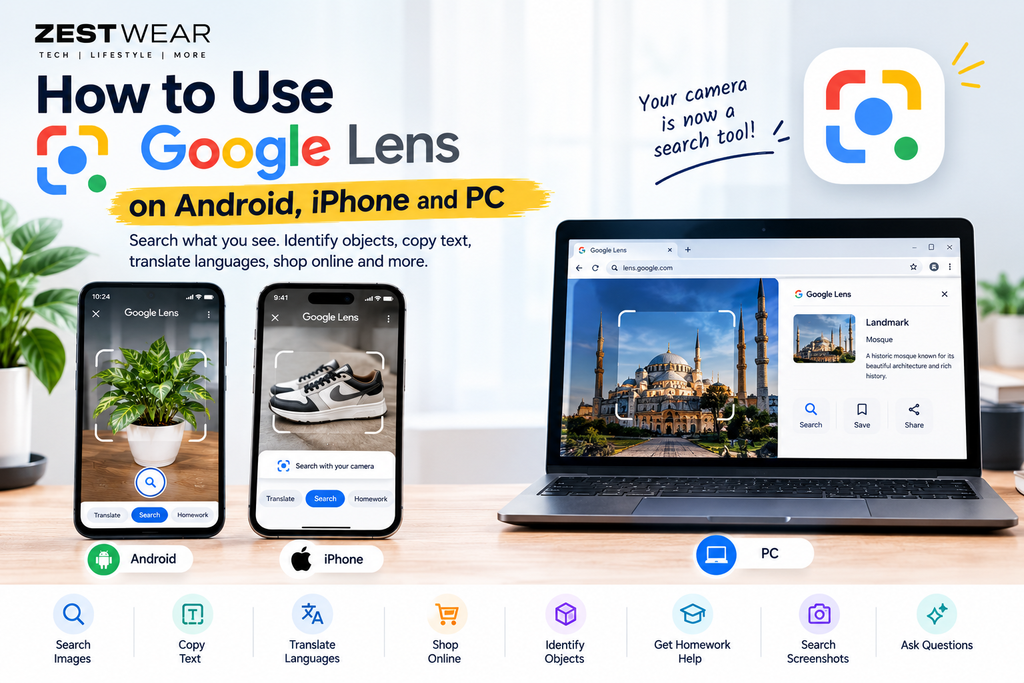
Learn how to use Google Lens on Android, iPhone and PC to search images, copy text, translate languages, identify objects, shop online and more.
Introduction
Have you ever seen something and wondered, “What is this?” Maybe it’s a plant, product, landmark, piece of clothing, document, or even text written in another language.
Instead of typing a long description into Google, you can use Google Lens to search using an image or your phone’s camera.
So, how to use Google Lens?
Google Lens lets you search for objects, images and text using visual information. You can take a photo, upload an existing image, select part of a picture, translate text, copy words from an image, identify objects, research products and ask questions about what you see. Google says Lens is available through the Google app on Android and iOS, while Lens-based visual search is also available in other Google experiences.
In this guide, you’ll learn how to use Google Lens step by step, including how to use it on Android, iPhone and desktop.
how to tell if your phone is hacked
What Is Google Lens?
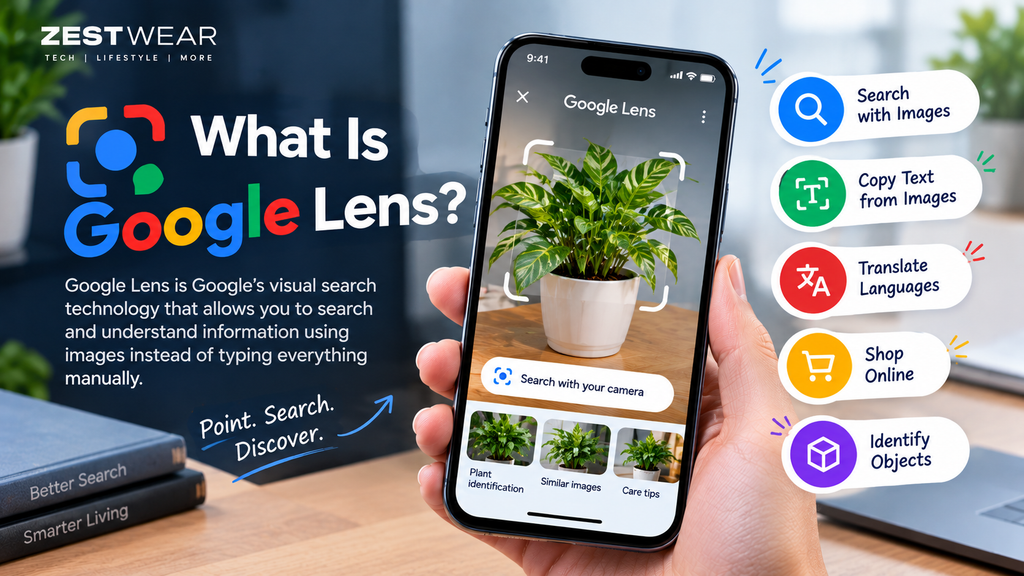
Google Lens is Google’s visual search technology that allows you to search and understand information using images instead of typing everything manually.
For more details about how visual search works and the features available in Google Lens, see the official Google Lens guide
For example, you can point your camera at:
- A plant
- A product
- A piece of clothing
- A landmark
- A restaurant menu
- A document
- A mathematical problem
- A foreign-language sign
- A screenshot
- An image on a website
Lens can then provide relevant search results, similar images, information about objects, text-related actions and other useful results.
Think of it as Google Search for things you can see.
How to Use Google Lens on Android
Using Google Lens on Android is straightforward.
How to use Google Lens is easier than you might think…
Step 1: Open the Google App
Open the Google app on your Android phone.
Make sure the app is updated if Lens isn’t appearing.
Step 2: Tap the Google Lens Icon
Look for the Lens camera icon inside the Google search bar.
Tap the Lens icon to open visual search.
Step 3: Take a Photo or Choose an Existing Image
You can point your camera at an object and take a picture.
Alternatively, choose an existing photo or screenshot from your device.
Google’s current Android instructions also allow you to select a specific area of an image to make your search more precise.
Step 4: Select the Part You Want to Search
If there are several objects in the image, Lens allows you to focus on a particular part.
For example, if a photo contains a person wearing a pair of shoes, you can select the shoes rather than searching the entire image.
Step 5: Review the Results
Scroll through the results to find information related to your image.
You may see:
- Search results
- Similar images
- Websites
- Product information
- AI-generated overviews, depending on the search and availability
How to Use Google Lens on iPhone
Google Lens is also available through the Google app on iPhone.
The basic process is similar to Android.
Step 1: Install or Open the Google App
Open the Google app on your iPhone.
Step 2: Tap the Lens Icon
Tap the Google Lens camera icon in the search interface.
Step 3: Take or Upload a Photo
Point the camera at something you want to identify or select an existing image.
Step 4: Adjust Your Selection
If necessary, select the specific object or area you want Google Lens to analyze.
Step 5: Explore the Results
Google Lens will display relevant visual search results and available information.
Google describes Lens as being available in the Google app on both Android and iOS.
How to Search With Google Lens
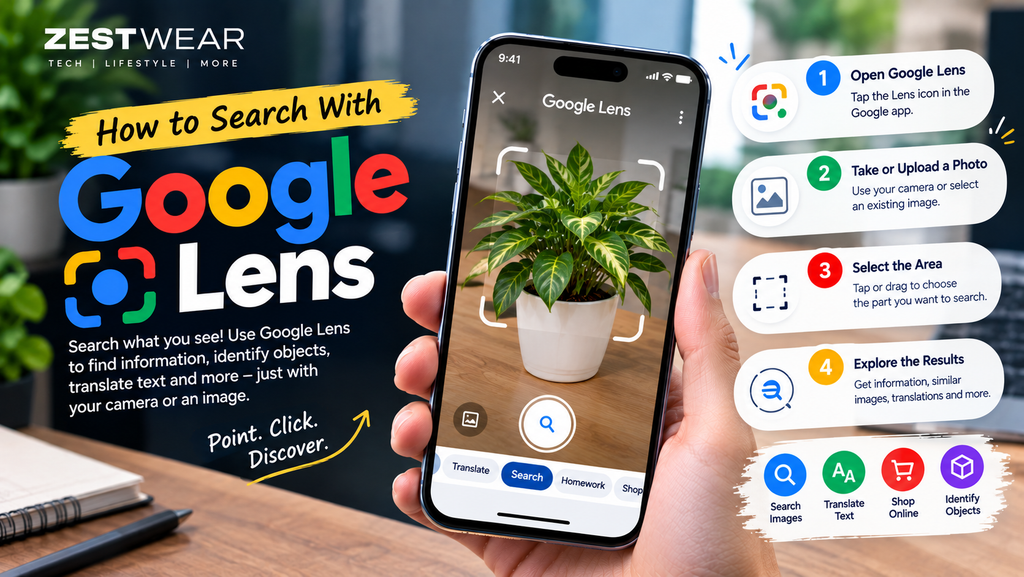
One of the most useful Google Lens features is visual search.
Instead of describing an object with words, you can simply take a picture.
For example, imagine you see a pair of sneakers you like.
Instead of searching:
“black and white sneakers with a thick sole”
you can take a photo and let Lens find visually similar results.
Google’s current Lens documentation explains that image searches can return similar images, websites containing the image or similar images, and information about objects in the image.
Best Tip for Better Results
Try to keep the object:
- Clearly visible
- Well lit
- In focus
- Large enough in the frame
You can also select a smaller part of the image for a more specific search.
How to Identify an Object With Google Lens
Google Lens can help you learn more about objects you don’t recognize.
For example, you could use it to research:
- Plants
- Animals
- Products
- Clothing
- Furniture
- Artwork
- Landmarks
- Electronics
- Everyday objects
How to Identify Something
- Open Google Lens.
- Point your camera at the object.
- Take a photo.
- Select the object if necessary.
- Review the search results.
For the best results, make sure the object is clearly visible.
How to Copy Text From a Picture With Google Lens
Another extremely useful feature is extracting text from images.
For example, you might have:
- A printed document
- A handwritten note
- A screenshot
- A book page
- A restaurant menu
- A business card
- A poster
Instead of typing everything manually, Google Lens can recognize text and provide actions such as copying, searching, translating or opening relevant links.
Steps
- Open Google Lens.
- Upload or take a picture.
- Select the text.
- Tap Select text.
- Choose Copy.
- Paste the text into another app.
This can save a lot of time when working with printed information.
How to Translate Text With Google Lens
Traveling to another country or looking at text you don’t understand?
Google Lens can help translate text from images.
You can point your camera at:
- Street signs
- Menus
- Documents
- Product packaging
- Posters
- Instructions
- Screenshots
Google says Lens can translate text across more than 100 languages.
How to Translate With Google Lens
- Open Google Lens.
- Select Translate.
- Point the camera at the text.
- Choose the source and target languages if needed.
- Review the translation.
For better results, use a clear, well-lit image.
How to Use Google Lens for Shopping
Google Lens can also be useful when shopping online.
Imagine you’re scrolling through social media and see a jacket, watch, backpack or pair of shoes you like.
You can use an image with Lens to find similar products and, where supported, product details.
Google says Lens can provide product information such as prices across retailers, reviews and where to buy products, depending on availability and market.
Example
You see a jacket you like.
Take screenshot → Open Lens → Select the jacket → Search → Compare available results.
This can be especially useful when you don’t know the exact product name.
How to Search a Screenshot With Google Lens
You don’t always need to take a new photograph.
You can also use screenshots and saved images.
For example, you could take a screenshot of:
- A product
- A social media post
- A piece of clothing
- A website
- A location
- A document
- A logo
Then open the screenshot through Lens and search it.
Google specifically describes Lens as supporting searches using saved images and screenshots.
How to Use Google Lens on a Website
If you’re browsing on Android and find an image on a website, you can search it using Google Lens.
According to Google’s current Android instructions:
- Open Chrome.
- Find the image.
- Touch and hold the image.
- Select Search image with Google Lens.
- Adjust the selected area if necessary.
- Review the related results.
You can also refine the search with additional keywords.
How to Use Google Lens on PC
Google has expanded Lens beyond mobile.
In Chrome desktop, Google says Lens can be used to select something on your screen and search it without leaving the page. You can select an area and then refine the search with additional questions or keywords.
This is useful when researching:
- Products
- Images
- Text
- Websites
- Clothing
- Graphics
- Screenshots
- Technical information
Basic Desktop Workflow
Open Chrome → Select Lens → Select something on your screen → Search → Explore results
The exact interface can vary depending on your Chrome version and account.
How to Use Google Lens for Homework
Google Lens can also help students understand homework questions.
Google has documented Lens features for getting help with subjects such as mathematics, science and other academic problems.
You can:
- Open Google Lens.
- Take a picture of the question.
- Select the relevant problem.
- Review the available explanations and resources.
For learning, don’t simply copy an answer. Use the explanation to understand how the problem is solved.
Google has also announced newer Lens learning experiences that can provide interactive explanations and help students work through difficult steps.
How to Ask Google Lens a Question
Google Lens has become more conversational.
Instead of only searching for an object, you can take a picture and ask a question about what you’re seeing.
For example:
- “What is this?”
- “How does this work?”
- “What type of plant is this?”
- “What is this product used for?”
- “What does this sign mean?”
Google introduced the ability to ask questions about what you’re viewing through Lens, including voice questions in supported experiences.
10 Useful Things You Can Do With Google Lens
Here are some of the most useful Google Lens features:
| Google Lens Feature | What You Can Do |
|---|---|
| Visual Search | Search using a photo |
| Object Identification | Learn about objects |
| Text Recognition | Copy text from images |
| Translation | Translate photographed text |
| Shopping | Find products and similar items |
| Screenshot Search | Search saved screenshots |
| Homework Help | Get help understanding problems |
| Image Research | Find similar images and sources |
| Desktop Search | Search selected content on your screen |
| Visual Questions | Ask questions about what you see |
Google Lens Tips for Better Results
Want better results from Google Lens? Try these simple tips.
1. Use a Clear Image
Blurry photographs can make visual recognition more difficult.
2. Improve Lighting
Take photographs in good lighting whenever possible.
3. Select the Correct Object
If an image contains multiple objects, select the one you’re interested in.
4. Add Keywords
After searching an image, add descriptive words to narrow down the results.
For example:
Photo of shoes + “black” + “men”
can be more specific than simply searching the photograph.
5. Check Multiple Sources
Visual search results can vary. If you’re researching an important topic, compare information from several reliable sources.
Google Lens vs Traditional Google Search
Traditional Google Search usually starts with words.
Google Lens starts with what you can see.
For example:
Traditional Search:
“blue running shoes with white sole”
Google Lens:
Take a picture of the shoes → Search with Lens.
Lens can be especially useful when you don’t know the exact name of something.
Is Google Lens Free?
Google Lens is available as part of Google’s search experiences, including the Google app on Android and iOS. Specific features and availability can vary by device, language, region and Google product.
You should therefore check which Lens features are available on your particular device.
Why Is Google Lens Not Working?
If Google Lens isn’t working correctly, try these solutions:
Update the Google App
Make sure you’re using a current version of the Google app.
Check Camera Permissions
Lens may need access to your camera or photos depending on what you’re trying to do. Google provides permission controls for Lens through Google app settings.
Check Your Internet Connection
Many visual-search functions require an internet connection.
Use a Clearer Image
Try taking the photo again in better lighting.
Select a Smaller Area
If Lens doesn’t recognize the entire image correctly, select only the object you’re interested in.
Google Lens Frequently Asked Questions
What is Google Lens used for?
Google Lens is used to search and understand things you see using images or your camera. It can help with visual searches, text recognition, translation, shopping, object identification and other visual-search tasks.
How do I open Google Lens?
On supported Android and iOS devices, you can open Lens through the Google app by tapping the Lens icon in the search interface.
Can Google Lens translate text?
Yes. Google Lens can translate photographed or uploaded text, with support for more than 100 languages according to Google’s published Lens information.
Can Google Lens copy text from an image?
Yes. Lens can recognize text in an image and provide actions such as copying, searching and translating selected text.
Can Google Lens identify products?
Yes. Lens can help identify products and, where the feature is available, provide product information such as prices, reviews and retailers.
Can I use Google Lens on a screenshot?
Yes. You can use Lens to search saved images and screenshots.
Can I use Google Lens on a computer?
Yes. Google has added Lens capabilities to desktop Chrome, allowing users to select content on their screen and search it. Availability can depend on the browser and account experience.
Final Thoughts
Google Lens makes searching much easier when you don’t know exactly what to type.
Instead of describing an object with several words, you can simply take a picture and search what you see.
Whether you want to identify an object, translate a menu, copy text, research a product, search a screenshot or learn more about something around you, Google Lens can turn your camera into a powerful visual search tool.
If you’ve never used it before, start with a simple photo and experiment with the different search options.