
Responsive Web Design
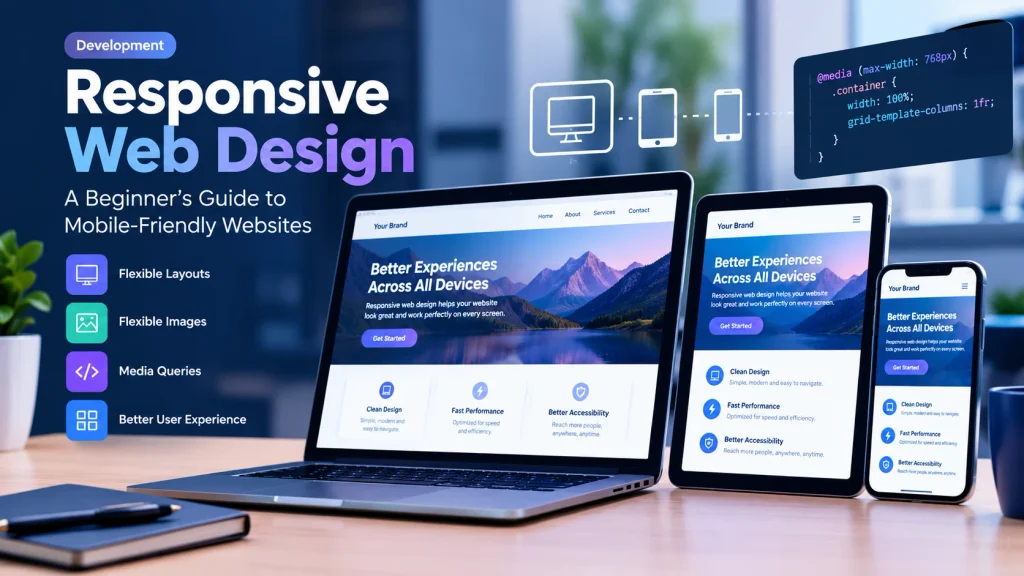
Learn responsive web design for beginners with practical HTML and CSS examples, media queries, mobile-first layouts, and website testing tips.
Responsive Web Design: A Beginner’s Guide to Mobile-Friendly Websites
Responsive web design helps a website adapt to different screen sizes, including smartphones, tablets, laptops, and desktop computers. Instead of creating a separate website for every device, developers use flexible layouts, responsive images, and CSS media queries to make one website work across different screens.
If you are learning HTML and CSS, understanding responsive web design is an essential step toward building modern websites. It can help you create a better experience for visitors, improve usability, and make your website easier to navigate on mobile devices.
In this beginner-friendly guide, you will learn what responsive web design means, why it matters, how it works, and how to create a simple responsive website using HTML and CSS.
What Is Responsive Web Design?
Responsive web design is an approach to website development that allows a page’s layout and content to adjust to the available screen space. A responsive website remains readable and usable whether someone opens it on a small smartphone or a large desktop monitor.
For example, a website might display three article cards in a row on a desktop. On a smartphone, those same cards can stack vertically so visitors can read each one without zooming or scrolling horizontally.
Responsive web design combines several techniques, including:
- Fluid layouts: Elements adjust to the width of their containers.
- Flexible images: Images resize to fit available space.
- CSS media queries: Styles change when the screen or browser meets specified conditions.
- Responsive typography: Text remains readable across different screen sizes.
- Flexible CSS Grid and Flexbox layouts: Content rearranges when the available space changes.
These techniques help developers create one adaptable website rather than maintaining separate desktop and mobile versions.
Why Is Responsive Web Design Important?
A website needs to work well for people using different devices. Visitors may browse your content on a phone during a commute, use a tablet for studying, or open the same page on a desktop at work.
Responsive design helps meet these different needs.
1. It improves the user experience
Visitors should be able to read text, open menus, tap buttons, and complete forms without constantly zooming in. A responsive layout makes these actions easier and helps users find information more comfortably.
2. It supports mobile usability
A fixed-width website may look acceptable on a large monitor but become difficult to use on a narrow screen. Responsive layouts help prevent content from extending beyond the screen and reduce unnecessary horizontal scrolling.
3. It supports SEO
Google uses the mobile version of a website’s content for indexing in its mobile-first indexing approach. A responsive layout can make it easier to maintain consistent content and links across devices.
However, responsive design alone does not guarantee higher rankings. Search visibility also depends on content quality, accessibility, technical performance, relevance, and other SEO factors.
4. It makes website maintenance easier
When you maintain one responsive website, you generally avoid managing separate desktop and mobile websites. You can update an article, product description, navigation menu, or other content in one place.
5. It can improve conversions
For online stores, blogs, service websites, and landing pages, a mobile-friendly layout can make important actions easier to complete. Visitors may find it simpler to read product details, submit a contact form, or click a call-to-action button.
The result depends on the website and its audience, but usability is an important part of an effective website experience.
How Does Responsive Web Design Work?
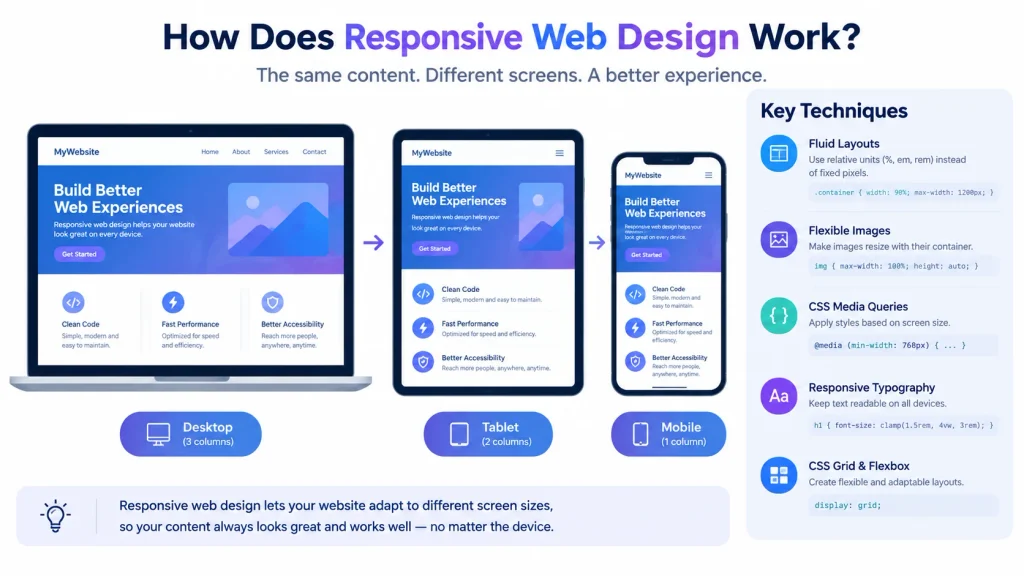
Responsive websites use HTML to organize content and CSS to control its appearance and layout. The browser then displays that content according to the available space and the rules defined by the developer.
Here are the main building blocks.
Fluid layouts
A fluid layout uses flexible measurements such as percentages, fr units, and minmax() instead of relying entirely on fixed pixel widths.
For example:
.container {
  width: 90%;
  max-width: 1200px;
  margin: 0 auto;
}
This container uses 90% of the available width until it reaches a maximum of 1,200 pixels. It can therefore adapt to smaller screens without becoming excessively wide on large monitors.
Flexible images
Images can cause horizontal overflow if their dimensions exceed the width of their containers. A common solution is:
img {
  max-width: 100%;
  height: auto;
}
The image can shrink when its container becomes narrower, while height: auto preserves its proportions.
For better performance, you should also optimize image file sizes and consider responsive image techniques when different devices need different image sizes.
CSS media queries
Media queries let you apply CSS rules only when certain conditions are met. Developers often use them to change layouts at particular viewport widths.
For example:
@media (min-width: 768px) {
  .content {
    display: grid;
    grid-template-columns: 2fr 1fr;
    gap: 24px;
  }
}
This example creates a two-column layout when the viewport is at least 768 CSS pixels wide. On narrower screens, the content can remain in its default single-column layout.
These transition points are called breakpoints. Choose breakpoints based on when your content needs a layout change, rather than targeting every individual phone model.
How to Create a Responsive Website Using HTML and CSS
You do not need an advanced framework to learn responsive web design. You can start with a basic HTML page and a small amount of CSS.
Follow these steps to build a simple responsive page.
Step 1: Create the HTML structure
Create a file named index.html. Add the following code:
<!DOCTYPE html>
<html lang="en">
<head>
  <meta charset="UTF-8">
  <meta name="viewport"
        content="width=device-width, initial-scale=1.0">
  <title>My Responsive Website</title>
  <link rel="stylesheet" href="style.css">
</head>
<body>
  <header class="site-header">
    <h1>My Website</h1>
    <nav>
      <a href="#">Home</a>
      <a href="#">About</a>
      <a href="#">Contact</a>
    </nav>
  </header>

  <main class="container">
    <section class="intro">
      <h2>Welcome to My Website</h2>
      <p>
        Learn how flexible layouts make websites easier
        to use on phones, tablets, and computers.
      </p>
    </section>

    <section class="cards">
      <article class="card">
        <h3>Learn HTML</h3>
        <p>Build the structure of a web page.</p>
      </article>

      <article class="card">
        <h3>Learn CSS</h3>
        <p>Style your content and create layouts.</p>
      </article>

      <article class="card">
        <h3>Build Responsively</h3>
        <p>Make your website adapt to different screens.</p>
      </article>
    </section>
  </main>
</body>
</html>
This HTML provides a header, navigation menu, introduction, and three content cards. The structure remains the same across devices; CSS controls how it looks at different widths.
Step 2: Add the CSS styles
Create another file named style.css in the same folder. Add the following code:
* {
  box-sizing: border-box;
}

body {
  margin: 0;
  font-family: Arial, sans-serif;
  line-height: 1.6;
  color: #222;
}

.site-header {
  padding: 20px;
  background: #243b80;
  color: white;
  text-align: center;
}

.site-header nav {
  display: flex;
  justify-content: center;
  flex-wrap: wrap;
  gap: 16px;
}

.site-header nav a {
  color: white;
  text-decoration: none;
}

.container {
  width: 90%;
  max-width: 1100px;
  margin: 30px auto;
}

.intro {
  margin-bottom: 30px;
}

.cards {
  display: grid;
  grid-template-columns: 1fr;
  gap: 20px;
}

.card {
  padding: 20px;
  border: 1px solid #ddd;
  border-radius: 8px;
  background: #f8f9fc;
}

@media (min-width: 600px) {
  .cards {
    grid-template-columns: repeat(2, minmax(0, 1fr));
  }
}

@media (min-width: 900px) {
  .cards {
    grid-template-columns: repeat(3, minmax(0, 1fr));
  }

  .site-header {
    display: flex;
    justify-content: space-between;
    align-items: center;
  }
}
Step 3: Understand the responsive CSS
The code uses a mobile-first approach. The basic layout starts with one column, which works well on narrow screens. Media queries add more columns when the viewport becomes wider.
Here is what happens:
- Below 600 pixels: The cards appear in one column.
- From 600 pixels: The cards appear in two columns.
- From 900 pixels: The cards appear in three columns, and the header changes to a horizontal layout.
These are example breakpoints, not universal rules. You can adjust them after testing your content at different widths.
Step 4: Open and test the website
Save both files in the same folder. Open index.html in a browser and resize the browser window.
Check whether the navigation wraps neatly, the cards fit within the screen, and the text remains readable. You can also open the browser’s developer tools and use its device toolbar to preview different viewport widths.
Beginner tip: Change the browser width gradually. If the navigation or cards start to look cramped, adjust the layout or introduce a suitable breakpoint.
Essential Responsive Web Design Techniques
Once you understand the basic example, these techniques will help you build more adaptable layouts.
Use a mobile-first approach
Mobile-first design means starting with styles for smaller screens and adding enhancements for wider screens. It encourages you to prioritize the most important content and keep the initial layout simple.
For example:
.content {
  display: grid;
  grid-template-columns: 1fr;
  gap: 20px;
}

@media (min-width: 800px) {
  .content {
    grid-template-columns: 2fr 1fr;
  }
}
The content begins in one column and gains a sidebar when enough space is available.
Use CSS Grid and Flexbox
CSS Grid works well for two-dimensional layouts, such as article cards, product grids, and page sections. Flexbox is useful for arranging items in a row or column, including navigation links and buttons.
You can also create a flexible grid without a media query:
.cards {
  display: grid;
  grid-template-columns:
    repeat(auto-fit, minmax(min(100%, 220px), 1fr));
  gap: 20px;
}
This rule lets the browser fit as many cards as possible into the available space, while keeping each card near a minimum width of 220 pixels when space permits.
Make typography flexible
Text should remain comfortable to read on both small and large screens. Avoid making headings so large that they overflow on phones.
CSS clamp() can help:
h1 {
  font-size: clamp(1.8rem, 4vw, 3rem);
}
This sets a minimum font size of 1.8rem, lets the size grow with the viewport, and caps it at 3rem. Always test headings and paragraph text to make sure they remain readable.
Make navigation touch-friendly
Navigation links and buttons should be easy to select on touchscreens. Leave enough spacing between interactive elements, avoid tiny text links, and ensure that menus work with both touch and keyboard input.
If your navigation needs a mobile menu, make sure the menu button clearly communicates its purpose and that the menu opens, closes, and can be operated accessibly.
Optimize images and other media
Large images can slow down a website, particularly on slower connections. Resize images appropriately, compress them, and use modern formats such as WebP or AVIF when supported by your workflow.
For embedded videos, make sure the player fits its container. A responsive media wrapper can help prevent video content from extending beyond the screen.
Common Responsive Web Design Mistakes to Avoid
Even a website that uses media queries can have mobile usability problems. Watch for these common mistakes.
Using fixed widths everywhere
A rule such as width: 1200px can cause overflow on a small screen. Use flexible widths and sensible maximum widths for page containers instead.
Forgetting the viewport meta tag
Without the viewport meta tag, mobile browsers may not render the page at the expected device width. Include this inside the HTML <head>:
<meta name="viewport"
      content="width=device-width, initial-scale=1.0">
Allowing images to overflow
Set images to fit their containers and check large diagrams, screenshots, and featured images on narrow screens.
Choosing breakpoints only for popular devices
New devices and screen sizes appear regularly. Build breakpoints around the needs of your content rather than maintaining a separate rule for every model of phone or tablet.
Hiding important content on mobile
Do not remove useful information simply to make the page shorter. Prioritize content, simplify layouts, and keep essential links and actions available.
Ignoring page performance
A responsive layout can still load slowly if it includes oversized images, unnecessary scripts, or heavy fonts. Optimize performance as part of the development process.
How to Test a Responsive Website
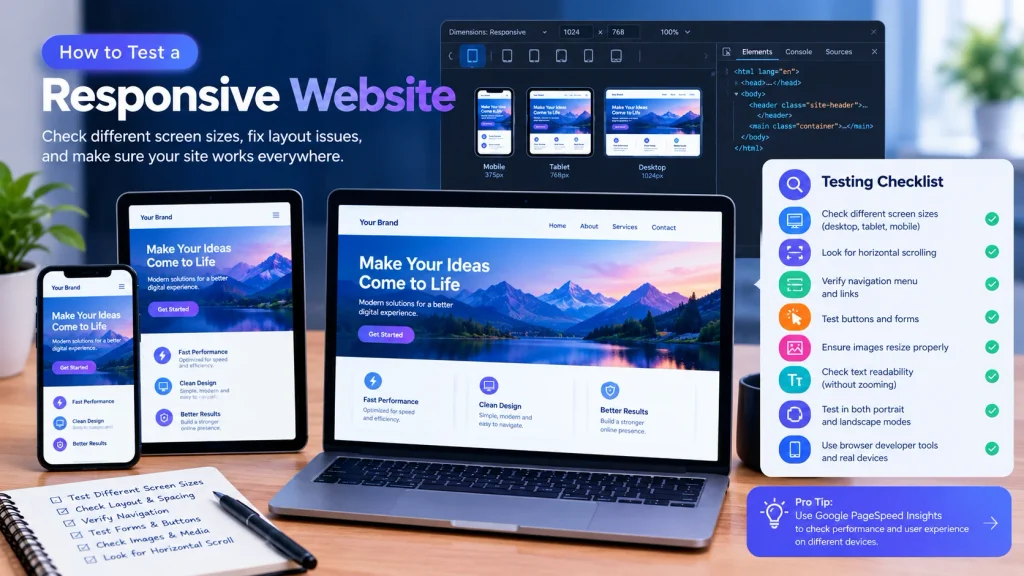
Testing helps you catch problems that may not appear on your own screen. Use more than one viewport size and, when possible, test on real devices.
Useful tools include:
- Chrome DevTools: Preview a page at different viewport widths and inspect layout issues.
- Firefox Responsive Design Mode: Test layouts at different screen dimensions.
- Google PageSpeed Insights: Review performance and user-experience diagnostics for a page.
- MDN Responsive Design Guide: Learn more about flexible layouts, media queries, responsive images, and typography.
When testing, check the following:
- Does the page fit narrow screens without unwanted horizontal scrolling?
- Can visitors read the text without zooming in?
- Do images resize without becoming distorted?
- Are navigation links, buttons, and forms easy to use?
- Does the layout work in both portrait and landscape orientations?
- Do headings and cards remain aligned at intermediate widths?
- Does the page load efficiently on a slower connection?
- Can keyboard users navigate interactive elements?
Passing a single mobile preview does not guarantee that every device will display the page perfectly. Test a range of widths and real devices where possible.
Responsive Web Design and SEO: What Should Website Owners Know?
Responsive web design supports usability, but it is only one part of a successful SEO strategy.
Google recommends responsive web design as an approach to making websites work across devices. A responsive site can also make it easier to maintain consistent page content, internal links, and metadata.
For website owners and bloggers, focus on these practical steps:
- Keep important content accessible on mobile and desktop.
- Use descriptive headings that help readers understand each section.
- Compress images and write meaningful alternative text for informative images.
- Make internal links useful and easy to tap.
- Avoid intrusive elements that block the main content.
- Monitor page performance and indexing with suitable tools.
- Review mobile layouts after publishing new pages or changing themes.
If you are improving a website, you can also read our guide on how to make a website load faster. For a broader SEO workflow, explore Google Search Console and keyword research.
These improvements work together: a usable layout helps visitors, while relevant content, crawlable pages, and sound technical SEO help search engines understand the website.
Is Responsive Web Design the Same as Adaptive Web Design?
Responsive and adaptive web design both aim to improve experiences across devices, but they approach layout differently.
Responsive design usually relies on flexible layouts that adjust continuously as the available space changes. Adaptive design more often uses predefined layouts or configurations for selected screen sizes or conditions.
For example, a responsive card grid might automatically fit two, three, or four columns depending on the space available. An adaptive layout might switch between a small set of explicitly defined arrangements.
Both approaches can work well. The right choice depends on the project, its content, and the requirements of the design.
Frequently Asked Questions
What is responsive web design in simple words?
Responsive web design means creating a website that adjusts its layout and content to different screen sizes. It helps the same website remain usable on phones, tablets, laptops, and desktops.
Can beginners learn responsive web design?
Yes. Beginners can start with basic HTML and CSS, then learn flexible widths, CSS Grid, Flexbox, media queries, and responsive images. Building and testing a small project is an effective way to practice.
Do I need JavaScript to make a website responsive?
No. Many responsive layouts use only HTML and CSS. JavaScript may be useful for interactive features such as expandable mobile navigation, but it is not required for basic responsive layouts.
Which CSS techniques are used in responsive web design?
Common techniques include relative units, CSS Grid, Flexbox, media queries, max-width, minmax(), clamp(), and responsive image rules. Developers combine these techniques according to the layout’s needs.
Does responsive web design improve Google rankings?
Responsive design can support mobile usability and is recommended by Google. However, it does not guarantee higher rankings. Search performance also depends on content relevance, technical accessibility, page experience, and many other factors.
How can I check whether my website is responsive?
Resize your browser window, inspect the layout with browser developer tools, and test on different devices. Check text readability, navigation, image scaling, forms, and horizontal overflow.
Final Thoughts
Responsive web design is a fundamental skill for anyone who wants to build modern websites. By combining flexible layouts, CSS Grid, Flexbox, media queries, responsive images, and readable typography, you can create pages that adapt to different screens without maintaining separate websites for every device.
Start with a simple HTML and CSS project, build the mobile layout first, and test it at several widths. Once the basics work, improve navigation, image performance, accessibility, and page speed.
Whether you are building a personal blog, a business website, an online store, or a portfolio, responsive design helps you create a more consistent and usable experience for visitors on different devices.